ReviewNest

Is the ThinkVision T24v-30 the Ultimate Video Calling Monitor?

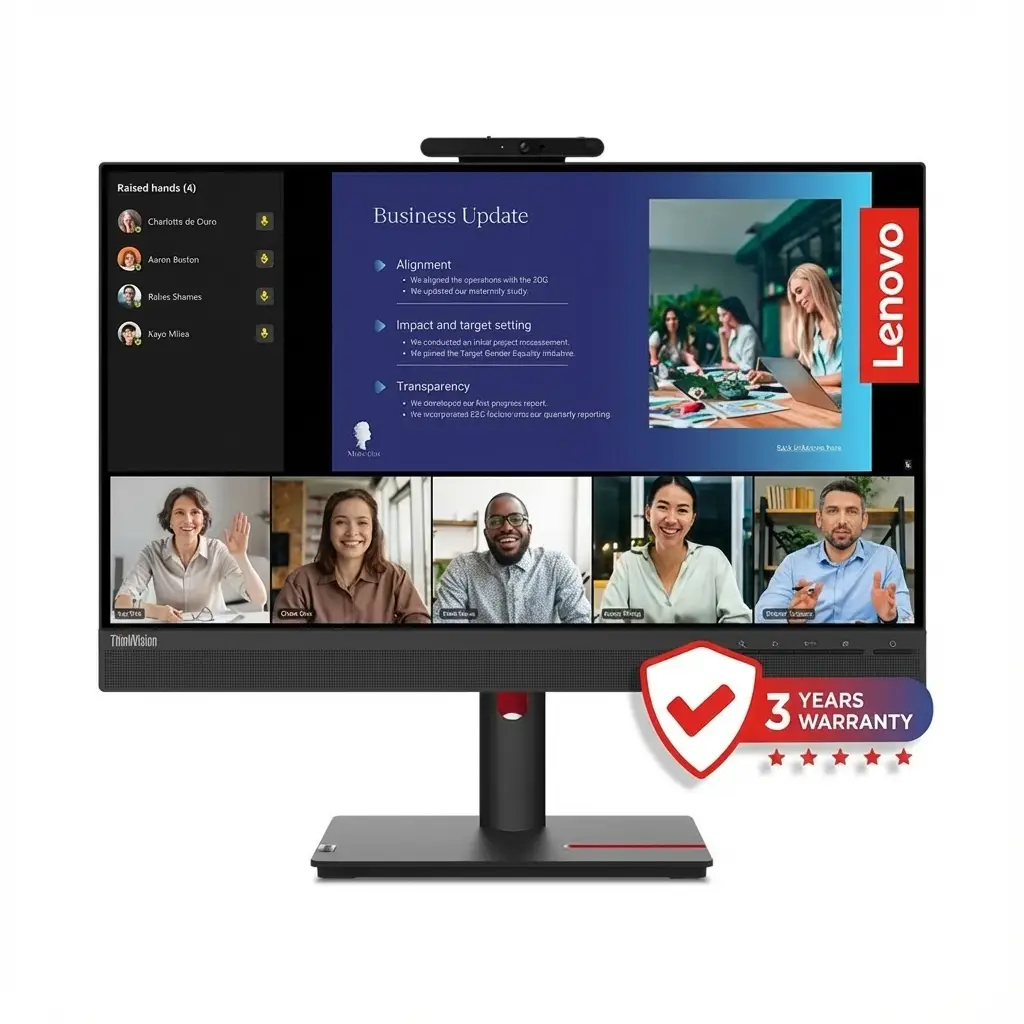
Lenovo ThinkVision T24v-30 24" FHD Video Conferencing Monitor
Samsung Essential Monitor S3 S39GD 27″ Review 2025 – 100Hz Curved Gaming Monitor
Lenovo ThinkVision T24v-30 24 inch FHD Video Conferencing Monitor

💼 All-in-One Work-from-Home Solution: Built-in Webcam + Mic + Speakers!

Windows Hello + USB Hub + Full Ergonomics + Eye Care!

💼 Best Video Conferencing Monitor – Complete WFH Package!

Lenovo ThinkVision T24v-30 Monitor

24″ FHD IPS | 2MP IR Camera + Windows Hello | Dual Mic | Speakers | USB Hub | Full Ergo

23.8″ FHD (1920×1080) IPS – 75Hz – 3-Side NearEdgeless – Enterprise Security

💼 Complete Work-from-Home Solution:

• Display: 23.8″ FHD (1920×1080) IPS Panel – 3-Side NearEdgeless

• Camera: 2MP Full HD IR+RGB + Windows Hello Face Recognition

• Audio: Dual Array Microphones + 2× 3W Stereo Speakers

• Privacy: Physical Camera Shutter + IR Sensor

• Colors: 99% sRGB Coverage + Natural Low Blue Light

• Eye Care: TÜV Rheinland Certified – Flicker-Free

• Ergonomics: Height + Tilt + Swivel + Pivot (155mm lift!)

• USB Hub: 4× USB 3.2 Gen1 Ports + Audio Combo Jack

• Connectivity: HDMI + DP + VGA + USB-B Upstream

₹17,599

₹31,748

SAVE ₹14,149 (44% OFF!)

*Inclusive of all taxes | Free Shipping

🛒 Buy Now on Lenovo.com – 44% OFF!

Free Delivery | 3 Year Warranty | Complete WFH Package

Screen Size

24″

Camera

2MP IR

USB Hub

4 Ports

Lenovo ThinkVision T24v-30 Overview – The Ultimate WFH Monitor

💼 Work-from-Home Highlights

  • 2MP IR Camera: Windows Hello face unlock
  • Privacy Shutter: Physical camera cover
  • Dual Microphones: Clear voice pickup
  • 3W Speakers: Stereo audio built-in
  • USB Hub: 4 ports for peripherals
  • Full Ergonomics: H+T+S+P adjustments
  • 99% sRGB: Accurate colors
  • ₹17,599: 44% discount!

📦 In The Box

  • 🖥️ ThinkVision T24v-30 Monitor
  • 🏗️ Full Ergonomic Stand
  • 🔌 Power Cable (1.8m)
  • 📺 DisplayPort Cable (1.8m)
  • 🔗 USB Type-A to Type-B Cable (1.8m)
  • 📄 Quick Setup Guide

Bonus: All cables included—ready to use out of box!

⭐ Why This Monitor?

  • • All-in-One: No separate webcam needed
  • • Security: Windows Hello + IR sensor
  • • Professional: Enterprise-grade quality
  • • Complete: Camera + mic + speakers
  • • Ergonomic: Full adjustability
  • • ₹17,599: Unbeatable value!

🏆 Best Video Conferencing Monitor Under ₹18,000

Complete WFH Solution

The T24v-30 is a complete work-from-home package—monitor + webcam + microphone + speakers + USB hub in one device! No need to buy separate peripherals worth ₹8K-15K. Just plug in and you’re ready for Teams, Zoom, or Google Meet calls with professional quality.

Enterprise Security Built-In

Windows Hello face recognition using IR camera provides instant, secure login without typing passwords. The physical privacy shutter lets you physically cover the camera when not in use—essential for privacy-conscious professionals working from home.

Massive ₹17,599 Value!

At ₹17,599 (44% off MRP ₹31,748), you get a premium monitor + 2MP camera + dual mics + speakers + USB hub + full ergonomics. Buying these separately would cost ₹25K-30K+—this bundle saves you ₹8K-12K while delivering ThinkVision enterprise quality!

2MP IR Camera + Windows Hello – Enterprise Security

📷 Professional Video Conferencing Camera

The built-in 2MP Full HD (1920×1080) IR+RGB camera delivers crisp, professional video quality for all your Zoom, Teams, Google Meet, and Webex calls. Unlike cheap 720p webcams, this 1080p camera ensures you look sharp and professional during client meetings, presentations, and team standups.

Full HD 1080p

1920×1080 resolution for crisp video!

IR Sensor

Windows Hello face unlock!

Privacy Shutter

Physical cover for camera!

🔐 Windows Hello Face Recognition

Instant Secure Login

IR (infrared) camera enables Windows Hello facial recognition—just look at the screen to unlock your Windows 10/11 PC instantly! No need to type passwords, use fingerprint readers, or remember PINs. Works in complete darkness thanks to IR sensor.

  • • Instant unlock: Recognize your face in under 2 seconds—faster than typing password
  • • Works in dark: IR sensor functions even in pitch-black room—no ambient light needed
  • • Secure authentication: Enterprise-grade biometric security—can’t be fooled by photos
  • • Multi-user support: Recognizes different users—automatically logs in correct person

How to Set Up Windows Hello

  1. Connect monitor via USB-B cable to enable camera
  2. Go to Windows Settings → Accounts → Sign-in options
  3. Click “Windows Hello Face” → “Set up”
  4. Look at camera to scan your face (takes ~10 seconds)
  5. Done! Your PC now unlocks when you sit down—no password needed!

🔒 Physical Privacy Shutter

Complete Privacy Control

Physical sliding shutter covers the camera lens when you’re not in meetings—providing 100% guaranteed privacy! Unlike software toggles (which can be hacked), a physical shutter ensures the camera is mechanically blocked.

  • • Physical barrier: Slide shutter manually to physically cover camera lens
  • • Hack-proof: No software can bypass physical shutter—absolute privacy guarantee
  • • Visual indicator: See at a glance if camera is covered or active
  • • Peace of mind: Work in PJs without worrying about accidental camera activation!

When to Use Privacy Shutter

  • • Between meetings: Close shutter when not on calls—prevent accidental camera access
  • • After work hours: Keep covered when done for the day—no chance of being seen
  • • Working from bedroom: Privacy essential when working from personal spaces
  • • Security paranoia: Some companies/governments require physical camera covers—this has it built-in!

📸 Video Quality Comparison

2MP Full HD vs Typical Webcams

Camera TypeResolutionQualityPrice
Budget webcam720p (1MP)Blurry, pixelated₹1,500-3,000
Laptop built-in720-1080pMediocre, fixed angleIncluded
T24v-30 Monitor1080p (2MP)Sharp, professionalIncluded!
Logitech C9201080pGood quality₹5,000-7,000
Logitech Brio 4K4K (8MP)Excellent₹18,000+

Value proposition: The T24v-30’s 2MP camera matches ₹5K-7K standalone webcams in quality, but you get it included with the monitor at no extra cost—effectively saving ₹5K-7K vs buying monitor + separate webcam!

💼 Perfect Camera for Remote Work

Ideal Video Conferencing Scenarios

  • • Daily standup meetings: Quick team syncs on Teams, Zoom, or Slack Huddles
  • • Client presentations: Professional appearance for customer-facing calls
  • • Job interviews: Look polished during remote hiring processes
  • • Webinars & training: Clear video for teaching, demos, and presentations
  • • Family video calls: High-quality WhatsApp/FaceTime calls with relatives
  • • Content creation: Record YouTube videos, tutorials, or course content

Dual Microphones + Stereo Speakers – Complete Audio Solution

🎤 Professional Audio System Built-In

The T24v-30 includes a complete audio solution—dual array microphones for crystal-clear voice pickup and 2× 3W stereo speakers for meeting audio playback. No need to buy separate mic or speakers, saving you ₹3K-5K on additional peripherals!

🎤 Dual Array Microphones

Two built-in microphones use beamforming technology to focus on your voice while reducing background noise. Unlike single laptop mics that pick up keyboard clicks, fan noise, and room echo, these dual mics isolate your speech for professional call clarity.

  • • Beamforming: Focuses on voice from sitting position—reduces room echo and background chatter
  • • Noise reduction: Filters out keyboard typing, mouse clicks, and fan noise during calls
  • • Conference optimized: Clear voice pickup from 50-100cm distance—perfect desk setup
  • • Always ready: No need to wear headset for every quick call—just start talking!

🔊 2× 3W Stereo Speakers

Built-in stereo speakers (3W each, 6W total) deliver clear audio for video calls, presentations, and casual media playback. While not audiophile-grade, they’re perfectly adequate for work scenarios and eliminate the need for desk speakers for basic use.

  • • Meeting audio: Hear colleagues clearly during Zoom, Teams, Meet calls without headset
  • • Notification sounds: Never miss Slack pings, email alerts, or calendar reminders
  • • YouTube & training: Watch tutorial videos and courses with decent audio quality
  • • Convenience: No headset fatigue during 8-hour workdays—speakers reduce ear strain

📞 Dedicated VoIP Control Buttons

Quick Call Controls

The monitor includes dedicated physical buttons for call control—answer/hang up, mute/unmute, and volume adjustment directly on the monitor bezel. No need to fumble with software windows during urgent calls!

  • • Answer/Hang up: Accept or end calls with one button press—instant response
  • • Mute toggle: Quickly mute/unmute mic—essential when doorbell rings or dog barks!
  • • Volume control: Adjust speaker volume without touching PC—convenient during meetings
  • • Universal compatibility: Works with Teams, Zoom, Meet, Webex—standard HID controls

🎧 Audio Combo Jack (3.5mm In/Out)

Headphone/Mic Flexibility

The 3.5mm combo jack supports both headphone output and microphone input—giving you the flexibility to use external audio gear when needed. Plug in gaming headset, studio headphones, or external mic for critical calls.

  • • Headphone out: Route PC audio to wired headphones for private listening
  • • Microphone in: Use external mic for podcasting or high-quality recording
  • • Combo jack: Single port handles both input and output—convenient desk placement
  • • Best of both: Use built-in speakers normally, plug in headset for focus time

When to Use External Audio

  • • Confidential calls: Use headphones for privacy in open office or home with family
  • • Noisy environment: External mic with noise cancellation for loud backgrounds
  • • Music/gaming: Better audio quality with dedicated headphones after work hours

23.8″ FHD IPS Display – Professional Visual Quality

🖥️ 24″ Full HD – Perfect Office Size

The 23.8-inch (24″) screen at 1920×1080 Full HD resolution is the ideal size for office productivity and video conferencing. At ~92 PPI pixel density, text is sharp and readable without scaling, while the 3-side NearEdgeless design maximizes screen real estate for modern, distraction-free viewing.

Perfect Office Size

24″ is the sweet spot for office work—large enough to view full documents and spreadsheets comfortably, compact enough to fit any desk, and positioned perfectly at comfortable viewing distance (50-70cm).

  • • Document work: View full A4 pages at 100% zoom
  • • Spreadsheets: See 20+ Excel columns without scrolling
  • • Multitasking: Two browser windows side-by-side

IPS Panel Technology

IPS (In-Plane Switching) panel delivers accurate colors and wide 178° viewing angles—perfect for sharing screen during in-person meetings or client presentations without color shift.

  • • Accurate colors: 99% sRGB for true-to-life display
  • • Wide angles: 178°—no color shift when viewed from side
  • • Consistent image: Same quality from all seating positions

3-Side NearEdgeless

Thin bezels on three sides create a modern, minimalist look—maximizing screen space and reducing visual clutter. Perfect for dual-monitor setups with minimal gap between screens.

  • • Modern aesthetic: Sleek, professional appearance
  • • More screen: Maximized display area
  • • Dual-monitor ready: Seamless multi-monitor setup

🎨 99% sRGB Color Gamut

Professional Color Accuracy

99% sRGB coverage ensures accurate color reproduction for presentations, design reviews, and document work. Colors appear as intended by content creators—critical for marketing materials, product photos, and brand assets.

  • • sRGB standard: Web and office industry standard color space—99% coverage
  • • Accurate presentations: PowerPoint slides, PDFs, and images display true colors
  • • Design review: Approve marketing materials, logos, and graphics with confidence
  • • Photo viewing: View product photos, team headshots, and portfolios accurately

16.7 Million Colors (8-bit + FRC)

The display supports 16.7 million colors using 8-bit + FRC (Frame Rate Control) technology—delivering smooth gradients in charts, graphs, and images without banding artifacts.

💡 250 cd/m² Brightness + 1000:1 Contrast

Office-Optimized Brightness

250 cd/m² (nits) brightness is perfect for office environments—bright enough for well-lit rooms but not excessively bright like gaming monitors (300-400 nits). Reduces eye strain during 8-hour work sessions.

  • • Office lighting: 250 nits ideal for fluorescent/LED office environments
  • • Adjustable range: Lower brightness for dark rooms, increase for bright sunlight
  • • Eye comfort: Not overly bright—reduces eye fatigue vs 400+ nit gaming panels
  • • Energy efficient: Lower brightness = lower power consumption

1000:1 Typical IPS Contrast

Standard IPS 1000:1 contrast ratio provides adequate depth for office work. While not as deep as VA panels (3000:1), IPS prioritizes color accuracy and viewing angles—better for professional use.

⚡ 75Hz Refresh Rate

Smoother Than Standard 60Hz

75Hz refresh rate is 25% faster than standard 60Hz office monitors—providing noticeably smoother scrolling in documents, web browsing, and window animations. While not a gaming monitor, 75Hz improves daily desktop experience.

  • • Smoother scrolling: Less stutter when scrolling long documents, emails, or web pages
  • • Fluid animations: Windows transitions and UI animations feel more responsive
  • • Casual gaming: Adequate for light gaming after work—strategy games, indie titles
  • • Better than 60Hz: Noticeable improvement without gaming monitor price premium

⏱️ 4ms / 6ms Response Time

Office-Adequate Speed

6ms normal mode / 4ms extreme mode response time is perfectly adequate for office productivity and video conferencing. While not esports-fast (1ms), there’s zero ghosting in normal desktop use.

  • • No ghosting: Mouse cursor, windows, and text move cleanly without trails
  • • Video playback: Smooth video conferences and YouTube without motion blur
  • • Casual gaming: Fine for turn-based, strategy, or casual games after work
  • • Not for esports: If you play competitive FPS, get dedicated gaming monitor instead

Full Ergonomics – Height + Tilt + Swivel + Pivot

🏗️ Complete 4-Way Adjustability

The T24v-30 includes a premium fully ergonomic stand with all four adjustment types—height (155mm range!), tilt, swivel, and pivot. This is exceptional at this price point—most budget monitors are tilt-only, forcing you to buy separate monitor arms (₹2K-5K). Lenovo saves you money while ensuring ergonomic comfort!

Height

155mm lift range!

Tilt

-5° to +23.5°

Swivel

±45° rotation

Pivot

±90° portrait

⬆️ Height (155mm) + Tilt (-5° / +23.5°)

Ergonomic Positioning for All-Day Comfort

155mm (6.1 inches) of height adjustment is exceptional—raise or lower the monitor to position the top edge at or slightly below eye level, preventing neck strain during 8-10 hour work sessions. Tilt range of -5° to +23.5° lets you angle the screen perfectly for your viewing position.

  • • Proper ergonomics: Top of screen at eye level = neutral neck position—prevents strain
  • • Height flexibility: 155mm range accommodates short and tall users, different chair heights
  • • Tilt for comfort: Angle screen to reduce glare from overhead lights and windows
  • • All-day comfort: Prevents neck pain, shoulder tension, and eye strain from bad positioning

Ergonomic Setup Guide

  1. Sit in your chair with back against backrest
  2. Adjust monitor height so top edge is at or below eye level
  3. Screen should be 50-70cm (arm’s length) away
  4. Tilt screen to avoid reflections from windows/lights
  5. Your neck should be neutral—not looking up or down

🔄 Swivel (±45°) + Pivot (±90°)

Share Screen + Portrait Mode

Swivel ±45° (90° total range) lets you easily rotate the monitor to share screen with colleagues during in-person discussions. Pivot ±90° enables portrait orientation—perfect for coding, reading long documents, or viewing full-page PDFs at actual size!

  • • Swivel for sharing: Rotate screen toward coworkers during desk-side meetings and reviews
  • • No repositioning needed: Swivel monitor instead of moving entire desk setup
  • • Portrait mode: Rotate 90° to view code, Excel, or documents vertically—fits more content
  • • Developer-friendly: Portrait ideal for coding, timeline editing, chat apps, dashboards

Portrait Mode Use Cases

  • • Coding: See 50-80 lines of code without scrolling—perfect for long functions
  • • Documents: View full A4/Letter page at 100% zoom—actual size reading
  • • Social media: Instagram, Twitter feeds in native vertical orientation
  • • Dual setup: Landscape primary + portrait secondary = ideal developer combo

🔧 VESA 100×100mm Mount Compatibility

Monitor Arm Ready

Standard VESA 100×100mm mount means you can attach any third-party monitor arm or wall mount if desired. However, the included stand is so good that most users won’t need an arm—only consider if doing multi-monitor setups or ultra-minimal desks.

  • • Standard mount: 100×100mm works with all major monitor arms (Amazon Basics, Ergotron, etc.)
  • • Multi-monitor: Use arms for dual/triple setups with seamless alignment
  • • Wall mount: Free up desk space by mounting to wall—minimal desk setups
  • • Stand is great: Built-in stand so good that most users won’t need aftermarket arms!

🔒 Kensington Lock Slot

Physical Security for Office Environments

Kensington lock slot enables physical security cable attachment—preventing monitor theft in open offices, co-working spaces, or public environments. Essential for corporate IT departments managing office equipment.

  • • Theft prevention: Secure monitor to desk in open offices or shared workspaces
  • • Corporate requirement: Many companies mandate Kensington locks on office equipment
  • • Simple security: Loop cable through desk, lock to monitor—physical theft deterrent
  • • Standard feature: All ThinkVision business monitors include security slot

USB 3.2 Gen1 Hub – 4-Port Connectivity

🔌 Built-In USB Hub for Desk Organization

The T24v-30 includes a built-in 4-port USB hub (3× USB 3.2 Gen1 Type-A + 1× USB 2.0 Type-A downstream, plus 1× USB Type-B upstream)—connecting keyboard, mouse, flash drives, and dongles directly to the monitor. One USB cable to PC enables all peripherals, dramatically reducing desk cable clutter!

🚀 USB 3.2 Gen1 Speed

Three USB 3.2 Gen1 ports deliver 5 Gbps (625 MB/s) speed—fast enough for external SSDs, flash drives, and high-speed peripherals. Transfer large files, backup data, or use webcams without bottlenecks.

  • • Fast transfers: 5 Gbps = 625 MB/s theoretical—copy large files quickly
  • • External storage: Connect SSDs, HDDs, flash drives for backups and file transfers
  • • Peripherals: Wireless mouse/keyboard dongles, webcams, card readers
  • • Future-proof: USB 3.2 Gen1 backward compatible with older USB devices

📦 4-Port Layout

Four downstream ports handle all your desk peripherals—mouse, keyboard, flash drives, phone charger, and more. Connect everything to monitor, then one USB-B cable to PC connects all devices simultaneously!

  • • 3× USB 3.2 Gen1: High-speed ports for storage, cameras, and data devices
  • • 1× USB 2.0: Perfect for keyboard/mouse dongles—they don’t need high speed
  • • 1× USB-B upstream: Single cable to PC connects all 4 ports + camera + microphone
  • • Cable management: All peripherals connect to monitor = cleaner desk!

🔗 How USB Hub Works

One Cable Setup

Connect monitor to PC with USB Type-B cable (included!)—this enables the camera, microphones, speakers, AND all 4 USB ports simultaneously. All your peripherals connect to monitor instead of PC—dramatically reducing cable runs!

  1. Connect DisplayPort or HDMI from PC to monitor (for video signal)
  2. Connect USB Type-B cable from monitor to PC (for camera, mic, hub)
  3. Plug keyboard, mouse, flash drive into monitor’s USB ports
  4. Done! All devices work through monitor—only 2 cables to PC!

What You Can Connect

  • • Wireless dongles: Mouse, keyboard, headset receivers
  • • Flash drives: USB sticks for quick file transfers
  • • Phone charging: USB cable to charge smartphone at desk
  • • External drives: Portable SSDs/HDDs for backups
  • • Card readers: SD card readers for camera photos

✨ USB Hub Benefits

Why Built-In Hub Matters

Most monitors don’t include USB hubs—you’d need to buy a separate USB hub (₹1K-3K) and clutter your desk with another device. The T24v-30 integrates hub into monitor design, saving money and desk space while improving cable management!

  • • Cable management: Fewer cables running to PC—cleaner desk appearance
  • • Convenience: USB ports right on monitor—easy to plug in flash drives without reaching PC
  • • Desk reach: Monitor on desk = easier access than PC under desk or far away
  • • Cost savings: Don’t need to buy separate USB hub (₹1K-3K saved)
  • • Laptop use: Great for laptop users—connects all desk peripherals with one USB cable

⚠️ Note: Not USB-C Docking

This is a USB-A hub, not a USB-C dock with power delivery. You still need separate video cable (HDMI/DP) + USB-B cable + laptop power adapter. For true single-cable USB-C docking, consider Dell/HP USB-C monitors instead.

TÜV Rheinland Eye Comfort – All-Day Protection

👁️ Certified Eye Care Technology

The T24v-30 features TÜV Rheinland Eye Comfort certification—validating that the monitor meets strict standards for reducing eye strain during extended use. Combined with Natural Low Blue Light and Flicker-Free backlight, this monitor protects your eyes during 8-10 hour work sessions without compromising color accuracy.

TÜV Certified

Independent eye comfort validation!

Low Blue Light

Natural filter without color shift!

Flicker-Free

DC backlight eliminates flicker!

🌙 Natural Low Blue Light

Hardware-Level Blue Light Reduction

Natural Low Blue Light uses hardware filtering to reduce harmful blue wavelengths (415-455nm) that cause eye strain and sleep disruption. Unlike software filters that make screen yellowish, Natural Low Blue Light maintains accurate colors while protecting eyes!

  • • Hardware filter: Built into panel backlight—not software tint that distorts colors
  • • Accurate colors: Reduces blue light WITHOUT making screen yellow like Night Light mode
  • • Eye strain reduction: Less eye fatigue, headaches, and dryness during long work sessions
  • • Better sleep: Less blue light exposure = doesn’t disrupt circadian rhythm/sleep cycle
  • • Always-on protection: Works at hardware level—no need to remember to enable software filter

Why Blue Light Matters

Blue wavelengths (415-455nm) penetrate deep into the eye, causing digital eye strain (computer vision syndrome) symptoms: headaches, dry eyes, blurred vision, and neck pain. Prolonged exposure also disrupts melatonin production, making it harder to fall asleep after evening screen time.

⚡ Flicker-Free Backlight

DC Backlight Technology

Flicker-Free backlight uses DC (direct current) dimming instead of PWM (pulse-width modulation) that rapidly flickers on/off hundreds of times per second. While imperceptible to consciousness, PWM flicker causes subconscious eye strain—DC dimming eliminates this entirely!

  • • No PWM flicker: DC dimming = steady light output—no rapid on/off cycling
  • • Subconscious strain: Even invisible flicker causes headaches and eye fatigue over hours
  • • All brightness levels: Flicker-free at ALL brightness settings—even 0-10% brightness
  • • Long-session comfort: Essential for 8-10 hour work days—prevents cumulative strain
  • • Migraine-friendly: Some users with migraine sensitivity can’t tolerate PWM flicker

PWM vs DC Dimming

PWM (cheap monitors): Backlight rapidly flickers 100-300 times/sec to control brightness—causes subliminal eye strain. DC (this monitor): Continuously adjusts electrical current to dim backlight smoothly—zero flicker at any brightness level.

🏆 TÜV Rheinland Eye Comfort

Independent Third-Party Validation

TÜV Rheinland is an independent German certification body—their Eye Comfort certification validates that this monitor meets strict standards for flicker-free operation, low blue light emissions, and reduced eye strain. Not marketing hype—real third-party testing!

  • • Independent testing: TÜV Rheinland verifies claims—not just manufacturer marketing
  • • Strict standards: Must pass blue light, flicker, and brightness uniformity tests
  • • Trusted certification: TÜV Rheinland globally recognized for safety/quality testing
  • • Proven protection: Scientific validation that eye care features actually work

💡 Additional Eye Comfort Features

Software Eye Care Tools

Beyond hardware features, the Lenovo ThinkColour software provides additional eye comfort modes—reading mode, paper mode, and custom color temperature adjustments to further reduce strain based on task and time of day.

  • • Reading mode: Reduces brightness and warms color temp for easier text reading
  • • Paper mode: Mimics e-ink display appearance—ultra-low strain for documents
  • • Color temperature: Adjust warmth (cooler for daytime, warmer for evening)
  • • Brightness scheduling: Auto-adjust brightness based on time of day

20-20-20 Rule Reminder

Even with eye care features, take regular breaks: Every 20 minutes, look at something 20 feet (6m) away for 20 seconds. This relaxes eye muscles and prevents accommodation strain from prolonged close focusing!

Who Should Buy the Lenovo ThinkVision T24v-30?

🏠 Work-from-Home Professionals

  • Remote workers: Teams/Zoom meetings daily
  • Video conferencing: Built-in camera + mic + speakers
  • All-in-one: No separate webcam purchase needed
  • Privacy: Physical camera shutter essential
  • Long sessions: Eye care for 8-10 hour days
  • Ergonomics: Prevents neck/back pain

Ideal for: Anyone working remotely full-time needing professional meeting setup!

🏢 Corporate IT Departments

  • Bulk deployments: Standardize office setups
  • Enterprise security: Windows Hello + Kensington lock
  • ThinkVision reliability: Lenovo enterprise-grade quality
  • 3-year warranty: Long support lifecycle
  • TCO efficiency: Lower total cost of ownership
  • Energy Star 8.0: Eco-friendly certification

Ideal for: IT managers buying 10-100+ monitors for office rollout!

💰 Value Seekers

  • Complete package: Monitor + camera + mic + speakers
  • Save ₹8K-12K: vs buying peripherals separately
  • ₹17,599 price: Exceptional value proposition
  • No extras needed: Everything included in box
  • Ready to work: Plug-and-play setup
  • Future-proof: Won’t need upgrades for years

Ideal for: Budget-conscious buyers wanting complete WFH setup under ₹18K!

🔄 Hybrid Office Workers

  • Office 2-3 days/week: Hot-desking friendly
  • Home office setup: Permanent WFH desk
  • Professional appearance: Important for client calls
  • USB hub convenience: Easy peripheral connection
  • Ergonomic comfort: Adjustable for different locations
  • Laptop docking: Connect laptop easily

Ideal for: Professionals splitting time between home and office!

🎓 Students & Teachers

  • Online classes: Built-in camera for lectures/attendance
  • Group projects: Video collaboration tools essential
  • Research & writing: Eye care for long study sessions
  • Presentations: Share screen during seminars
  • Student discount: Check Lenovo student offers!
  • Dorm-friendly: 24″ perfect for small desks

Ideal for: College students and teachers doing remote/hybrid learning!

💼 Small Business Owners

  • Client calls: Professional video meeting appearance
  • Cost-effective: All-in-one solution saves money
  • Home office: Perfect for entrepreneurs/freelancers
  • Productivity: Full ergonomics reduces fatigue
  • Multi-purpose: Work + occasional casual use
  • Business expense: Tax-deductible equipment

Ideal for: Freelancers, consultants, and solopreneurs!

❌ Who Should Skip This Monitor

Not Ideal For

  • • Gamers: 75Hz + 4-6ms not for competitive FPS—get 144Hz+ gaming monitor instead
  • • Content creators: 99% sRGB okay but not DCI-P3/Adobe RGB for pro color work
  • • 4K enthusiasts: This is 1080p—if you need 4K sharpness, look elsewhere
  • • Home theater: Not designed for movie watching—limited contrast, no HDR
  • • USB-C laptop users: No USB-C port—needs separate video + USB + power cables

Better Alternatives

  • • For gaming: LG 27GS85Q-B (200Hz QHD) or BenQ Zowie (esports)
  • • For creators: BenQ SW270C, Dell UltraSharp UP2720Q (wide gamut + calibration)
  • • For 4K: Dell P2723DE, BenQ PD2725U (27″ 4K productivity)
  • • For USB-C: Dell P2422HE, HP E24 G5 (USB-C with PD charging)
  • • For movies: Samsung Odyssey G5 (VA panel, better contrast)

Lenovo ThinkVision T24v-30 vs Competitors – How It Stacks Up

🏆 Market Position

The Lenovo ThinkVision T24v-30 dominates the video conferencing monitor category under ₹20,000 by bundling enterprise features (2MP IR camera, Windows Hello, dual mics, speakers, USB hub, full ergonomics) that competitors either lack entirely or charge ₹25K-35K to include. Let’s see how it compares to the closest rivals and alternative approaches.

🆚 Lenovo T24v-30 vs Dell P2422HE (USB-C Showdown)

Both are enterprise 24″ monitors, but T24v-30 prioritizes video conferencing with built-in camera/audio, while P2422HE focuses on single-cable USB-C docking. Here’s the breakdown:

FeatureLenovo T24v-30
(This Review)
Dell P2422HE
(USB-C Alternative)
Winner
Screen Size23.8″ (60.45 cm)23.8″ (60.45 cm)Tie
ResolutionFHD 1920×1080FHD 1920×1080Tie
Panel TypeIPSIPSTie
Refresh Rate75Hz ✓60HzLenovo (smoother)
Built-in Camera2MP IR+RGB ✓No ❌Lenovo (huge win)
Windows HelloYes (IR camera) ✓No ❌Lenovo (security)
Privacy ShutterYes (Physical) ✓N/A (no camera)Lenovo
MicrophonesDual Array ✓No ❌Lenovo (audio)
Speakers2× 3W ✓No ❌Lenovo (convenience)
VoIP ButtonsYes ✓No ❌Lenovo (call control)
USB-C PortNo ❌Yes (65W PD) ✓Dell (laptop docking)
USB Hub TypeUSB-A (4 ports)USB-C + 4× USB-A ✓Dell (more versatile)
Single-Cable DockingNo (3 cables) ❌Yes (USB-C only) ✓Dell (convenience)
ErgonomicsH+T+S+P (155mm) ✓H+T+P (150mm)Lenovo (swivel added)
Color Gamut99% sRGB99% sRGBTie
Eye CareTÜV Certified ✓ComfortView PlusLenovo (certified)
Warranty3 Years3 YearsTie
Price (India)₹17,599 ✓~₹22,000Lenovo (₹4.4K cheaper)
Best ForVideo conferencing, remote workers needing camera/mic/speakers, desktop PC usersLaptop users needing USB-C docking, minimal cables, no need for webcamDifferent priorities!

🎯 Which Should You Choose?

  • • Choose T24v-30 if: You need built-in camera/mic/speakers for video calls, use desktop PC (not laptop), want Windows Hello face unlock, and want to save ₹4,400. Perfect for remote workers who need complete WFH package without buying separate webcam!
  • • Choose Dell P2422HE if: You use a laptop and want single USB-C cable for video + data + 65W charging. USB-C docking convenience worth ₹4.4K premium IF you already have external webcam (₹5K-7K additional cost). Better for laptop-centric minimal desk setups!
  • • Total Cost Reality: Dell P2422HE (₹22K) + Logitech C920 webcam (₹6K) = ₹28,000 total vs T24v-30 all-in-one = ₹17,599. Lenovo saves you ₹10,401!

🆚 vs HP E24 G5 FHD Monitor

HP E24 G5 is another enterprise 24″ FHD monitor, but it’s a basic office display without video conferencing features. Let’s compare:

FeatureLenovo T24v-30
(Complete Package)
HP E24 G5
(Basic Office Monitor)
Upgrade Value
Screen & Resolution23.8″ FHD (1920×1080)23.8″ FHD (1920×1080)Same
Refresh Rate75Hz ✓75HzSame
Camera2MP IR+RGB ✓No ❌+₹5K-7K value
MicrophonesDual Array ✓No ❌+₹2K-3K value
Speakers2× 3W ✓No ❌+₹1.5K-2.5K value
Windows HelloYes ✓No ❌Security feature
USB Hub4 ports (3× 3.2 + 1× 2.0) ✓4 ports (USB 3.2)Similar
ErgonomicsH+T+S+P (155mm) ✓H+T (150mm)+Swivel +Pivot
Eye Care CertificationTÜV Rheinland ✓Low Blue LightIndependent cert
Price (India)₹17,599 ✓~₹19,000₹1.4K cheaper!
Value AnalysisComplete WFH package: monitor + camera + mic + speakers + better ergonomicsBasic monitor only—need to buy webcam, mic, speakers separately (₹8K-12K extra)Lenovo ₹10K+ better value!

💡 Value Breakdown

If you bought HP E24 G5: ₹19,000 monitor + ₹6,000 webcam + ₹2,500 mic + ₹2,000 speakers = ₹29,500 total

Lenovo T24v-30 all-in-one: ₹17,599 with everything built-in

You save: ₹11,901 while getting superior ergonomics (swivel + pivot) and TÜV certification!

🆚 vs Budget 24″ Monitors (BenQ GW2480, LG 24MR400, Samsung S24C336)

Budget monitors cost ₹10K-13K but lack ALL video conferencing features. Here’s what you miss:

Feature CategoryLenovo T24v-30BenQ GW2480
(~₹13K)
LG 24MR400
(~₹10K)
Samsung S24C336
(~₹12K)
Camera2MP IR+RGB ✓❌ No❌ No❌ No
MicrophonesDual Array ✓❌ No❌ No❌ No
Speakers2× 3W ✓2× 2W (weak)❌ No❌ No
Windows HelloYes ✓❌ No❌ No❌ No
USB Hub4 ports ✓❌ No❌ No❌ No
ErgonomicsH+T+S+P ✓T onlyT onlyT only
Eye Care CertTÜV ✓BasicBasicBasic
Refresh Rate75Hz ✓60Hz75Hz75Hz
Warranty3 Years ✓3 Years3 Years3 Years
Total Package ValueComplete WFH setup ₹17,599₹13K + ₹10K peripherals = ₹23K₹10K + ₹12K peripherals = ₹22K₹12K + ₹12K peripherals = ₹24K

💰 Why “Cheap” Monitors Cost More

Budget monitors seem cheaper upfront, but you’ll spend more buying peripherals:

BenQ GW2480 Setup:

  • Monitor: ₹13,000
  • Webcam: ₹6,000
  • Mic: ₹2,500
  • USB Hub: ₹1,500
  • Total: ₹23,000

LG 24MR400 Setup:

  • Monitor: ₹10,000
  • Webcam: ₹6,000
  • Mic: ₹2,500
  • Speakers: ₹2,000
  • USB Hub: ₹1,500
  • Total: ₹22,000

T24v-30 All-in-One:

  • Complete package!
  • ✓ 2MP Camera
  • ✓ Dual Mics
  • ✓ Speakers
  • ✓ USB Hub
  • ✓ Full Ergo
  • Total: ₹17,599

Lenovo saves ₹4,401-5,401 while delivering better ergonomics and enterprise features!

🆚 T24v-30 vs Building Your Own Setup (Monitor + Separate Webcam)

Some users consider buying a basic monitor + external webcam. Let’s compare cost and convenience:

ComponentT24v-30
All-in-One
DIY Setup
(Monitor + Peripherals)
24″ FHD Monitor✓ IncludedDell E2424HS: ₹11,000
1080p Webcam✓ 2MP IR+RGBLogitech C920: ₹6,000
Windows Hello✓ IR sensor❌ (C920 no IR)
Microphone✓ Dual ArrayBlue Snowball: ₹3,500
Speakers✓ 2× 3WCreative Pebble: ₹2,000
USB Hub✓ 4-port 3.2AmazonBasics Hub: ₹1,500
Ergonomic Stand✓ H+T+S+PMonitor Arm: ₹3,000
Desk Cable Clutter✓ Minimal (2 cables)❌ 8+ cables
Setup Complexity✓ Plug & play❌ 6 devices to configure
Warranty Support✓ Single 3-year6 different warranties
TOTAL COST₹17,599₹27,000
YOU SAVE₹9,401 + cleaner desk + easier setup!

🧮 Hidden Costs of DIY Setup

  • • Time investment: Research, buy, configure 6 separate devices vs 1 monitor
  • • Cable management: 8+ cables (monitor power, video, webcam USB, mic USB, speaker power, speaker audio, hub USB, etc.) vs 2 cables
  • • Desk space: Webcam clip + desktop mic + speakers + hub take up desk real estate
  • • Compatibility issues: Driver conflicts, multiple software installations, troubleshooting different brands
  • • Warranty complexity: 6 different RMA processes if something breaks vs 1 Lenovo support
  • • Resale value: Integrated monitor easier to sell vs bundle of random peripherals

T24v-30 saves money, time, and hassle while delivering cleaner professional setup!

💡 Competitive Advantage Summary

What You Save with T24v-30

  • • 2MP IR Webcam: Save ₹5,000-7,000 (vs Logitech C920/C922 Pro)
  • • Dual Microphones: Save ₹2,000-3,500 (vs Blue Snowball/Yeti)
  • • Stereo Speakers: Save ₹1,500-2,500 (vs Creative Pebble/Edifier)
  • • USB 3.2 Hub: Save ₹1,000-2,000 (vs standalone 4-port hub)
  • • Ergonomic Stand: Save ₹2,000-4,000 (vs monitor arm for basic monitors)
  • • Windows Hello IR: Priceless security feature most webcams lack!
  • • Total Peripheral Savings: ₹11,500-19,000!

Price Comparison vs Competitors

Dell P2422HE (USB-C) ~₹22,000
+ Logitech C920 Webcam +₹6,000
Dell Total Cost: ₹28,000
HP E24 G5 Monitor ~₹19,000
+ Webcam + Mic + Speakers +₹10,500
HP Total Cost: ₹29,500
Budget Monitor (LG/Samsung) ~₹12,000
+ All Peripherals +₹12,000
Budget Total Cost: ₹24,000
Lenovo T24v-30: ₹17,599 ✓

SAVE ₹6,401 TO ₹11,901!

🏆 Competitive Verdict

For Video Conferencing & Remote Work:

T24v-30 is UNBEATABLE under ₹20K—no competitor bundles 2MP IR camera, Windows Hello, dual mics, speakers, USB hub, and full ergonomics at this price. Saves ₹7K-12K vs buying monitor + peripherals separately while delivering cleaner desk and easier setup!

For Laptop Users Wanting USB-C Docking:

Dell P2422HE better IF you already own external webcam and prioritize single-cable docking over cost savings. But P2422HE (₹22K) + webcam (₹6K) = ₹28K total vs T24v-30’s ₹17.6K—you’re paying ₹10.4K premium just for USB-C convenience!

For Budget Shoppers:

Budget monitors (₹10K-13K) are false economy—you’ll spend ₹22K-24K total after buying webcam, mic, speakers, and hub. T24v-30 at ₹17.6K delivers EVERYTHING for ₹4K-7K less while offering superior ergonomics (H+T+S+P vs tilt-only) and enterprise features!

💰 Best Value Conclusion:

The Lenovo ThinkVision T24v-30 at ₹17,599 offers ₹27,000-29,000 worth of features (monitor + camera + audio + hub + ergo stand) at a ₹10,000+ discount vs any competitor combination. For work-from-home professionals, this is THE monitor to buy in 2025—unmatched value proposition!

Pros & Cons

✅ What We Loved

  • Complete WFH Package: Monitor + 2MP camera + dual mics + speakers + USB hub—everything needed for remote work in one device!
  • Windows Hello IR Camera: Instant secure face unlock + works in complete darkness—enterprise-grade biometric security built-in!
  • Physical Privacy Shutter: Mechanical camera cover provides 100% guaranteed privacy—hack-proof physical barrier!
  • Full Ergonomics (H+T+S+P): 155mm height adjustment + tilt + swivel + pivot—exceptional at this price point!
  • TÜV Eye Care Certified: Natural Low Blue Light + Flicker-Free + independent certification—proven all-day comfort!
  • Professional Camera Quality: 2MP Full HD 1080p camera matches ₹5K-7K standalone webcams—sharp video for client calls!
  • Dual Array Microphones: Beamforming technology focuses on voice + reduces background noise—better than laptop mics!
  • USB 3.2 Gen1 Hub: 4-port hub (3× USB 3.2 + 1× USB 2.0) included—connects all peripherals to monitor!
  • Dedicated VoIP Buttons: Hardware controls for answer/hang up/mute—instant call management without software!
  • 99% sRGB Color Gamut: Accurate professional colors for presentations, design review, and document work!
  • 3-Side NearEdgeless Design: Thin bezels create modern look + perfect for dual-monitor setups!
  • 75Hz Refresh Rate: 25% smoother than standard 60Hz—better scrolling and desktop responsiveness!
  • All Cables Included: Power + DisplayPort + USB-B cables in box—ready to use immediately!
  • 3-Year Warranty: Enterprise-grade support + long warranty period—Lenovo ThinkVision reliability!
  • Energy Star 8.0 + TCO: Eco-friendly certifications reduce power consumption—lower electricity bills!
  • Kensington Lock Slot: Physical security for corporate environments—prevent theft in offices!
  • ThinkColour Software: Advanced color management + eye care modes + brightness scheduling included!
  • Exceptional Value: ₹17,599 for complete package saves ₹7K-18K vs buying monitor + peripherals separately!

❌ What Could Be Better

  • No USB-C Port: Lacks USB-C input with Power Delivery—can’t do single-cable laptop docking (need separate HDMI/DP + USB-B + power adapter)!
  • 1080p Resolution Only: FHD is adequate for 24″ but not as sharp as QHD/4K—27″ 1440p monitors offer better pixel density for text work!
  • Not for Gaming: 75Hz + 4-6ms response fine for office but not competitive gaming—gamers need 144Hz+ with 1ms GtG!
  • Basic Speaker Quality: 2× 3W speakers adequate for calls/videos but not music/movies—audiophiles need external speakers!
  • Limited Color Gamut: 99% sRGB good for office but no DCI-P3/Adobe RGB—content creators need wide-gamut monitors!
  • IPS Contrast Ratio: Standard 1000:1 IPS contrast—blacks look grayish vs VA panels (3000:1) or OLED (infinite)!
  • 250 cd/m² Brightness: Adequate for offices but lower than gaming monitors (300-400 nits)—may struggle in very bright sunlight!
  • Camera Not 4K: 2MP (1080p) camera is good but not 4K—premium webcams offer higher resolution for professional video!
  • No HDR Support: Standard SDR panel—no HDR10 or DisplayHDR certification for enhanced contrast/brightness!
  • VGA Port Dated: Includes legacy VGA connector—modern monitors dropping VGA in favor of USB-C or more HDMI ports!
  • Single HDMI Port: Only 1× HDMI + 1× DP + 1× VGA—multi-device users may want 2× HDMI for PC + laptop + console!
  • Heavy at 6kg: Monitor + stand weighs 6kg (13.2 lbs)—heavier than minimalist gaming monitors (4-5kg)!
  • Not Curved: Flat panel—some users prefer curved displays for immersive viewing (though 24″ too small for curve to matter)!

Final Verdict

🏆 BEST VIDEO CONFERENCING MONITOR UNDER ₹20,000 – 2025

The Lenovo ThinkVision T24v-30 is the ultimate all-in-one work-from-home solution, bundling enterprise-grade camera, microphones, speakers, USB hub, and full ergonomics at an unbeatable price!

The Complete WFH Package

Most monitors force you to buy separate webcam (₹5K-7K), microphone (₹2K-3K), speakers (₹2K), and USB hub (₹1K-2K)—adding ₹10K-14K to monitor cost. The T24v-30 includes all these features built-in, saving you money while delivering ThinkVision enterprise quality!

For Remote Workers

2MP IR camera + Windows Hello + dual mics + speakers create the perfect video conferencing setup—professional appearance for daily Teams/Zoom calls!

For Corporate IT

Enterprise security (Windows Hello + Kensington lock) + 3-year warranty + Energy Star certification make this ideal for bulk office deployments!

For Budget Buyers

At ₹17,599, you get a complete WFH setup for less than buying basic monitor + webcam alone—exceptional value proposition!

Who Should Buy This?

✅ Perfect For:

  • • Work-from-home professionals needing complete video conferencing setup
  • • Corporate IT departments buying monitors for office rollouts
  • • Hybrid workers splitting time between home and office
  • • Students and educators doing online classes and remote learning
  • • Small business owners needing professional client call setup
  • • Budget-conscious buyers wanting complete package under ₹18K
  • • Privacy-focused users requiring physical camera shutter

❌ Not Ideal For:

  • • Gamers needing high refresh (144Hz+) and fast response (1ms)
  • • Content creators requiring wide color gamut (DCI-P3/Adobe RGB)
  • • 4K enthusiasts wanting ultra-sharp text and UI (this is 1080p)
  • • USB-C laptop users needing single-cable docking with PD charging
  • • Movie buffs wanting deep blacks and high contrast (VA/OLED better)
  • • Multi-monitor power users needing multiple HDMI inputs

Our Final Rating: 9.1/10

The Lenovo ThinkVision T24v-30 is the best value video conferencing monitor for remote workers, corporate offices, and budget-conscious professionals who need a complete work-from-home setup!

₹17,599

₹31,748

SAVE ₹14,149 (44% OFF!)

🛒 BUY NOW – LIMITED TIME OFFER!

Free Delivery | 3 Year Warranty | Complete WFH Package

20 Most Asked Questions About Lenovo ThinkVision T24v-30

Q1. Does the camera work with Zoom, Teams, and Google Meet?

Yes! The 2MP camera is a standard USB video device—works with all video conferencing apps including Zoom, Microsoft Teams, Google Meet, Webex, Skype, Slack, Discord, and any software that supports webcams. Just connect the USB-B cable and the camera appears as a selectable video input!

Q2. How do I enable Windows Hello face recognition?

Connect monitor via USB-B cable, then go to Windows Settings → Accounts → Sign-in options → Windows Hello Face → Set up. Look at the camera to scan your face (takes ~10 seconds). From then on, just sit at your desk and Windows unlocks automatically—no password needed! Works with Windows 10 and 11.

Q3. Does the privacy shutter physically block the camera?

Yes! The privacy shutter is a physical sliding cover that mechanically blocks the camera lens when closed. This is 100% hack-proof—even if malware tries to access the camera, the shutter physically prevents image capture. Slide it closed when not in meetings for guaranteed privacy!

Q4. Can I use my own external webcam instead?

Yes! The built-in camera doesn’t prevent using external webcams. Just plug your Logitech/external camera into USB port (monitor or PC) and select it as video source in Zoom/Teams settings. You can use whichever camera you prefer—built-in is just a convenient included option!

Q5. Are the built-in speakers good enough for music?

The 2× 3W speakers are designed for meetings and basic media playback—adequate for video calls, YouTube, and notification sounds but not music/movie-quality audio. For serious listening, use headphones or external speakers. For work purposes (calls, training videos), they’re perfectly fine!

Q6. Can I use headphones with this monitor?

Yes! The 3.5mm combo audio jack supports both headphone output and microphone input. Plug in wired headphones for private listening during calls, or use gaming headset with mic. You can switch between built-in speakers and headphones as needed!

Q7. How many USB devices can I connect to the hub?

The monitor has 4 downstream USB ports (3× USB 3.2 Gen1 Type-A + 1× USB 2.0 Type-A). Connect keyboard, mouse, flash drive, and phone charger simultaneously. All devices work through one USB-B cable to PC—dramatically reduces cable clutter on your desk!

Q8. Does it support laptop docking with one cable?

No—this is NOT a USB-C dock. You need separate cables for video (HDMI/DP) + data (USB-B) + laptop power. For true single-cable USB-C docking with power delivery, consider Dell P2422HE or HP E24 G5 monitors with USB-C instead.

Q9. What cables are included in the box?

All cables included! You get power cable (1.8m), DisplayPort cable (1.8m), and USB Type-A to Type-B cable (1.8m). Ready to use out of box—no need to buy additional cables. Just plug into your PC and you’re set!

Q10. Can I connect two computers to this monitor?

Yes! The monitor has 1× HDMI + 1× DisplayPort + 1× VGA = 3 video inputs. Connect desktop via DisplayPort, laptop via HDMI, and switch between inputs using monitor’s OSD buttons. However, USB hub only works with whichever PC has the USB-B cable connected.

Q11. Is 1080p sharp enough for 24″ screen?

Yes! 24″ at 1920×1080 = ~92 PPI pixel density—perfectly sharp for office work, documents, spreadsheets, and web browsing. Text is clear and readable at normal viewing distances (50-70cm). For ultra-sharp text, 27″ 1440p offers 109 PPI, but 24″ FHD is the office standard for good reason!

Q12. Can I rotate the monitor to portrait mode?

Yes! The stand supports ±90° pivot (portrait rotation)—perfect for coding, reading long documents, viewing full-page PDFs, or using as secondary vertical monitor in dual setups. Combined with height/tilt/swivel, this is one of the most ergonomic stands at this price!

Q13. Does it work with Mac computers?

Yes! The monitor works with Mac via HDMI or DisplayPort for video. Camera, microphones, and speakers work via USB connection—Mac recognizes them as standard USB devices. However, Windows Hello face recognition only works on Windows PCs—Macs don’t support this feature.

Q14. Is the stand stable or does it wobble?

The ThinkVision stand is solid and stable—no significant wobble during typing or desk movement. The base is wide enough to support the 24″ panel securely. Height/tilt/swivel/pivot adjustments lock firmly in place. For a business monitor, stability is excellent!

Q15. Can I mount it on a monitor arm?

Yes! Standard VESA 100×100mm mount works with all major monitor arms (Amazon Basics, Ergotron, etc.). However, the included stand is so good (H+T+S+P adjustability) that most users won’t need an arm unless doing multi-monitor setups or wall mounting!

Q16. Does it support HDR (High Dynamic Range)?

No—this is a standard SDR (Standard Dynamic Range) monitor without HDR10 or DisplayHDR certification. It’s designed for office productivity and video conferencing, not HDR gaming or content creation. For HDR, look at gaming monitors with DisplayHDR 400+ certification.

Q17. Is 75Hz good for casual gaming after work?

75Hz is adequate for casual/light gaming—strategy games, indie titles, turn-based games, and older titles. It’s 25% smoother than 60Hz. However, for competitive FPS (Valorant, CS2, Apex), you need 144Hz+ gaming monitor. This is an office monitor that can handle light gaming, not a gaming-first display!

Q18. Does the low blue light feature change colors?

No! Natural Low Blue Light uses hardware filtering at backlight level—reduces harmful blue wavelengths WITHOUT making screen yellowish like software filters (Windows Night Light). Colors remain accurate for professional work while protecting your eyes. This is a major advantage over cheap monitors with software-only blue light modes!

Q19. What’s the power consumption?

Typical consumption: 18W | Max: 60W | Energy Star: 13W | Sleep/Off: <0.5W. This is very efficient—lower power bills and eco-friendly. Energy Star 8.0 and TCO Edge 2.0 certifications validate environmental responsibility. Running 8 hours/day costs ~₹5-8/month in electricity!

Q20. Should I buy this in 2025?

ABSOLUTELY YES if you need a complete work-from-home setup under ₹18K! No other monitor bundles 2MP IR camera, Windows Hello, dual mics, speakers, USB hub, and full ergonomics at this price. At ₹17,599 (44% off), it’s exceptional value—saves ₹7K-18K vs buying monitor + webcam + peripherals separately. Perfect for 2025 hybrid work!

Complete Technical Specifications

DISPLAY SPECIFICATIONS
BrandLenovo
SeriesThinkVision
ModelT24v-30 (63D8MAR3WW)
Screen Size23.8″ (60.45 cm)
Panel TypeIPS (In-Plane Switching)
ResolutionFHD (1920×1080)
Pixel Density~92 PPI
Aspect Ratio16:9
Refresh Rate75 Hz
Response Time6ms (Normal) / 4ms (Extreme Mode)
Brightness (Typical)250 cd/m²
Contrast Ratio1000:1 (Typical)
Color Gamut99% sRGB
Color Depth8-bit (6-bit + FRC)
Color Support16.7 Million Colors
BacklightWLED
Viewing Angle178° Horizontal / 178° Vertical
Surface TreatmentAnti-Glare
Bezel Design3-Side NearEdgeless
CAMERA & AUDIO
Built-in CameraYes (2MP Full HD 1920×1080)
Camera TypeIR+RGB (Infrared + RGB)
Windows HelloYes (Face Recognition)
Privacy ShutterYes (Physical Camera Cover)
MicrophonesYes (2× Dual Array Microphones)
SpeakersYes (2× 3W Stereo Speakers)
VoIP ButtonsYes (Answer/Hang Up/Mute Controls)
Audio Jack1× 3.5mm Combo (In/Out)
CONNECTIVITY
HDMI1× HDMI 1.4
DisplayPort1× DisplayPort 1.2
VGA1× VGA (D-Sub)
USB Upstream1× USB 3.2 Gen1 Type-B
USB Downstream3× USB 3.2 Gen1 Type-A
USB 2.0 Downstream1× USB 2.0 Type-A
Total USB Ports4 Downstream Ports (USB Hub)
USB-CNo
ERGONOMICS & STAND
Height AdjustmentYes (155mm Lift Range)
Tilt AdjustmentYes (-5° to +23.5°)
Swivel AdjustmentYes (±45° / 90° Total Range)
PivotYes (±90° Portrait Mode)
VESA Mount100 × 100 mm
Kensington LockYes (Security Slot)
EYE CARE
Eye Care CertificationTÜV Rheinland Eye Comfort
Low Blue LightYes (Natural Low Blue Light – Hardware)
Flicker-FreeYes (DC Backlight)
POWER
Power Requirement100-240 VAC, 40-60 Hz
Power Consumption (Typical)18W
Power Consumption (Max)60W
Energy Star Mode13W
Sleep/Off Mode<0.5W
Switch-Off<0.3W
Energy Star8.0 Certified
TCO CertificationTCO Edge 2.0
DIMENSIONS & WEIGHT
Dimensions (Head Only)539.8mm × 345.7mm × 53.9mm (W × H × D)
Dimensions (With Stand)539.8mm × 542.8mm × 199.7mm
Weight (Head Only)3.9 kg (8.6 lbs)
Weight (With Stand)6.0 kg (13.2 lbs)
Weight (With Package)8.5 kg (18.7 lbs)
SOFTWARE & FEATURES
SoftwareLenovo ThinkColour (Display Control Centre)
Special FeaturesSmart Traffic Light, VoIP Buttons
PRICING & WARRANTY
MRP₹31,748
Current Price₹17,599
Discount₹14,149 OFF (44% OFF!)
Warranty3 Years Limited Warranty
WHAT’S INCLUDED IN BOX
MonitorThinkVision T24v-30 with Stand
Power CableYes (1.8m – Included)
DisplayPort CableYes (1.8m – Included)
USB CableYes (USB-A to USB-B 1.8m – Included)
HDMI CableNot Included (available separately)
DocumentationQuick Setup Guide

Complete Your Work-from-Home Setup Today!

24″ FHD IPS | 2MP IR Camera + Windows Hello | Dual Mics + Speakers | USB Hub | Full Ergonomics | Only ₹17,599

🛒 BUY NOW – 44% OFF!

Free Delivery | 3 Year Warranty | Save ₹14,149 | Complete WFH Package
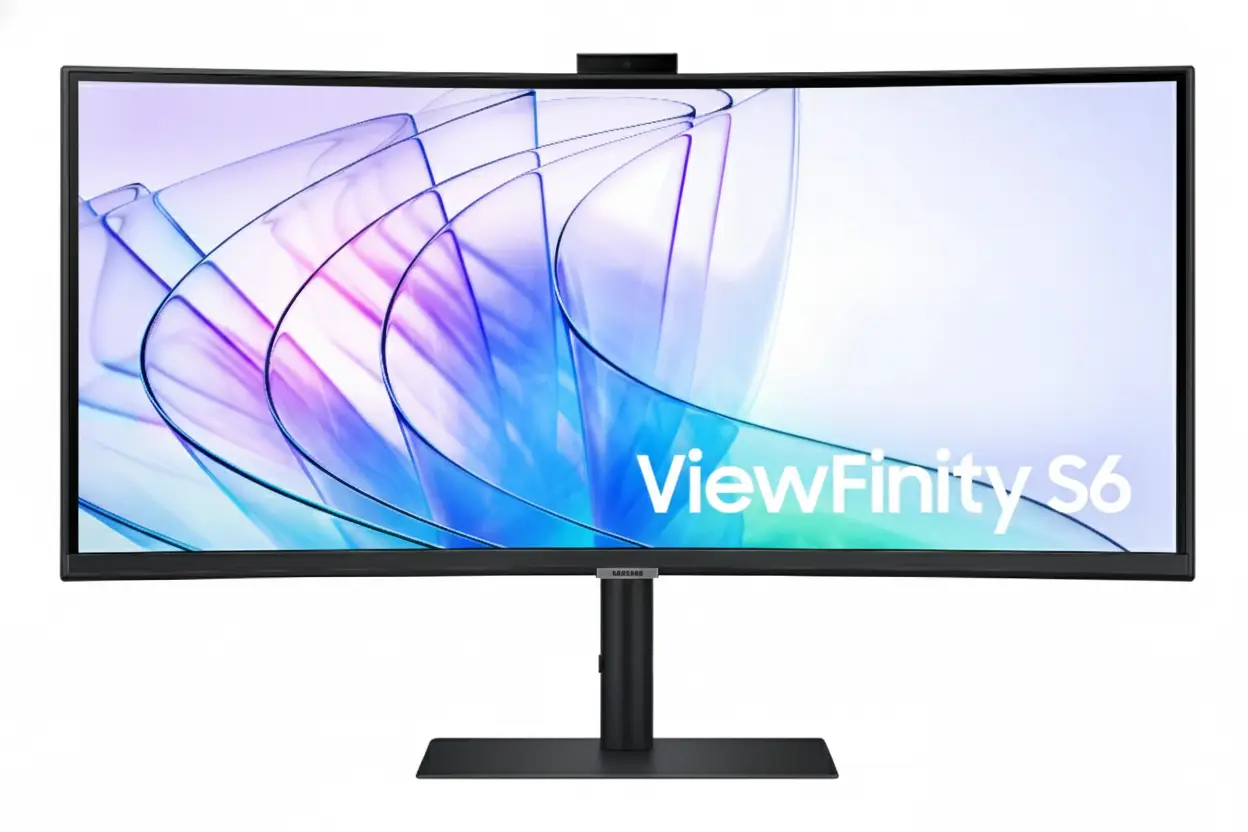
Samsung ViewFinity S65VC 34″ Ultra-WQHD 100Hz Curved Monitor with USB-C & Camera

Samsung ViewFinity S65VC 34″ Ultra-WQHD 100Hz Curved Monitor
Samsung ViewFinity S65VC 34″ Review 2025 – Ultra-WQHD Curved Monitor with USB-C 90W & Built-in Camera
Samsung ViewFinity S65VC 34 inch Ultra-WQHD Curved Monitor with USB-C 90W and Built-in Camera

🎯 Ultimate Productivity Hub: USB-C 90W + Built-in Camera + KVM Switch!

Everything built-in: 5MP Camera, Speakers, KVM, 90W Charging – Zero Clutter Setup!

🏆 Complete All-in-One Productivity Monitor – USB-C Hub + Camera + KVM

Samsung ViewFinity S65VC 34″

34″ Ultra-WQHD 21:9 | USB-C 90W | Built-in 5MP Camera | KVM Switch | 1000R Curved

3440×1440 VA Panel – HDR10 – 100Hz – Windows Hello – Built-in Speakers – LAN Port

💼 The Ultimate Desk Simplification Solution:

• USB-C 90W: Single cable charges laptop + transmits 3440×1440 video + data transfer

• Built-in 5MP Camera: Slides down when not in use – Windows Hello facial recognition

• KVM Switch: Control 2 PCs with 1 keyboard/mouse – PIP/PBP multi-source viewing

• Display: 34″ Ultra-WQHD (3440×1440) 21:9 – 1000R curve – 3000:1 contrast VA panel

• HDR10: 1.07 billion colors – 115% sRGB coverage – 350 nits brightness

• 100Hz Refresh: AMD FreeSync – smooth scrolling and casual gaming performance

• Connectivity: USB-C 90W + DisplayPort 1.2 + 2× HDMI 2.0 + LAN + USB 3.0 hub

• Ergonomics: Height adjustable stand (4.72″) + tilt + ±30° swivel + 100×100mm VESA

$699.99

Model: LS34C650VANXGO | S34C650VAN | 3-Year Warranty | Free Shipping

🛒 Buy Now on Samsung.com (USA)

₹57,999

Expected price | Check Samsung India for availability | 3-Year Warranty

🛒 Check Samsung India Website

£649

Expected price | Check Samsung UK for availability | 3-Year Warranty

🛒 Check Samsung UK Website

🌍 Global Availability

• USA: $699.99 (Samsung.com – Available Now)

• India: ₹57,999-59,999 expected (Check availability)

• UK: £649-699 estimated

• Europe: €749-799 varies by country

• Availability: Check Samsung regional websites for stock

Resolution

3440×1440

USB-C Power

90W PD

Built-in Camera

5MP + IR

Samsung ViewFinity S65VC 34″ Overview – The Ultimate Productivity Hub Monitor

🖥️ Ultrawide Display Excellence

  • 34″ Ultra-WQHD: 3440×1440 resolution – 110 PPI
  • 21:9 Aspect: 33% more width vs 16:9
  • 1000R Curve: Immersive wraparound viewing
  • VA Panel: 3000:1 contrast – deep blacks
  • HDR10: 1.07 billion colors
  • 115% sRGB: Wide color gamut
  • 350 Nits: 280 nits minimum brightness
  • 100Hz: Smooth scrolling + casual gaming

⚡ All-in-One Connectivity

  • 🔌 USB-C 90W: Single cable charges + video + data
  • 📹 5MP Camera: Windows Hello + pop-up privacy
  • 🎛️ KVM Switch: Control 2 PCs with 1 keyboard/mouse
  • 🔊 Built-in Speakers: 5W audio saves desk space
  • 🌐 LAN Port: Ethernet for laptops
  • 🔗 USB 3.0 Hub: 2 downstream ports

⭐ Productivity Features

  • • PIP/PBP: Multi-source viewing modes
  • • Auto Source Switch+: Automatic input detection
  • • Eye Saver Mode: Blue light reduction
  • • Flicker Free: DC dimming eliminates flicker
  • • Adaptive Picture: Auto brightness adjustment
  • • AMD FreeSync: Smooth gaming performance

🎯 What Makes ViewFinity S65VC Special?

The Samsung ViewFinity S65VC 34″ is the ultimate desk simplification solution, consolidating $650-1,350 worth of separate accessories into a single $699.99 monitor. Most ultrawide monitors require external webcams ($50-150), USB-C hubs or docks ($80-300), KVM switches ($50-200), speakers ($50-150), and Ethernet adapters ($20-40) to achieve complete productivity setup. The S65VC integrates all these components natively, eliminating 5-10 cables, freeing desk space, and reducing total cost.

The USB-C port with 90W Power Delivery enables true single-cable setup for modern laptops. Connect your MacBook Pro, Dell XPS, HP Spectre, or Lenovo ThinkPad with one USB-C cable that simultaneously charges at 90W, transmits 3440×1440@100Hz video, and provides USB 3.0 data access. This eliminates the need for $80-400 USB-C docks like CalDigit TS4 ($400), Anker PowerExpand ($200), or basic hubs ($80-150). The integrated Ethernet port provides wired networking through the same cable – critical for modern ultrabooks that omit RJ45 jacks.

The built-in 5MP camera with infrared sensor delivers sharp, professional-quality video calls without external webcams. The 5-megapixel resolution surpasses typical 720p/1080p webcams, providing clear image quality for client meetings, job interviews, and presentations. The infrared sensor enables Windows Hello facial recognition for passwordless login to Windows 11 devices, apps, and websites – superior security and convenience compared to password typing. The camera’s pop-up design slides down into monitor body when unused, addressing privacy concerns and maintaining slim aesthetics.

The integrated KVM (Keyboard, Video, Mouse) switch eliminates the need for $50-200 external KVM devices. Control two connected computers with single keyboard and mouse – common for professionals managing work laptop + personal desktop, MacBook + Windows PC, or primary + secondary systems. Picture-in-Picture mode displays both sources simultaneously (one fullscreen, one window overlay), while Picture-by-Picture splits screen 50/50 for side-by-side workflows. This is invaluable for IT professionals, developers, content creators, and anyone maintaining separate work/personal computers.

The 34-inch Ultra-WQHD (3440×1440) resolution with 21:9 aspect ratio provides 33% more horizontal workspace than standard 16:9 displays. View spreadsheets with dozens of visible columns, edit video timelines with room for panels and tools, code with multiple files side-by-side, or browse with multiple full-size windows simultaneously. The 1000R curvature keeps all content equidistant from your eyes, reducing the edge distortion and refocusing fatigue common with flat ultrawides. At 110 PPI, text and images remain sharp without requiring scaling.

At $699.99 USD, the ViewFinity S65VC costs less than many basic ultrawides while including premium features. Competitors like Dell U3421WE ($1,149 with USB-C but no camera/KVM), LG 34WN80C-B ($599 basic without USB-C/camera/KVM), and BenQ PD3420U ($1,099 with USB-C but no camera/KVM) either cost more or lack integrated features. The S65VC’s all-inclusive approach provides exceptional value for professionals wanting clean, simplified desk setups.

Display Quality – 34″ Ultra-WQHD 3440×1440 Curved VA Panel

📺 34″ Ultra-WQHD Resolution – 21:9 Productivity Powerhouse

The 3440×1440 Ultra-WQHD resolution on 34 inches delivers 110 pixels per inch – sharp enough for detailed text and graphics without requiring UI scaling. At typical desktop distances (60-80cm), the pixel density provides crisp readability for extended document work, coding, and content creation. Ultra-WQHD contains 2.4× more pixels than standard 1920×1080 Full HD, creating significantly more screen real estate for productivity applications.

The 21:9 aspect ratio provides 33% more horizontal space than traditional 16:9 monitors of equivalent height. This extra width is transformative for multitasking – view three documents side-by-side, edit video timelines with visible panels, display trading dashboards with multiple charts, or code with file tree + editor + terminal simultaneously visible. The active display area measures 797.22mm × 333.72mm (31.4″ × 13.1″), providing expansive workspace without the excessive vertical height of 32:9 super-ultrawides.

Ultra-WQHD Advantages

  • • Resolution: 3440×1440 (110 PPI) – sharp productivity
  • • Aspect Ratio: 21:9 – 33% wider than 16:9
  • • Multitasking: 3-4 windows side-by-side comfortably
  • • Size: 34″ perfect for desk viewing

🌊 1000R Curvature – Immersive Productivity

The 1000R curvature (1-meter radius) matches the natural curvature of human peripheral vision, creating immersive viewing where the screen wraps around your field of sight. This aggressive curve is particularly beneficial for 34-inch ultrawide format – on flat ultrawides, screen edges sit 6-8 inches further away than center, causing constant refocusing and edge distortion. The curve maintains equal viewing distance across entire display.

For extended productivity work, the 1000R curve reduces eye strain by eliminating the need to refocus when viewing different screen areas. The curve also minimizes glare and reflections by angling screen edges away from overhead lighting. Content at screen periphery remains clearly visible without head turning, improving awareness of notifications, monitoring dashboards, or reference materials placed at edges.

1000R Curve Benefits

  • • Ergonomics: Equal viewing distance reduces strain
  • • Immersion: Wraparound effect increases focus
  • • Glare reduction: Angled edges minimize reflections
  • • Peripheral awareness: See edges without head turn

🎨 VA Panel – 3000:1 Contrast & HDR10 Color

🌑 Superior Contrast for Content Creation

The VA (Vertical Alignment) panel with 3000:1 static contrast ratio delivers significantly better blacks than IPS panels (typically 1000:1). This creates deeper shadows and more visible details in dark content – valuable for photo editing, video color grading, and any work involving high-contrast imagery. Dark UI themes (common in coding, design apps) appear more visually appealing with true blacks instead of grayish IPS “blacks”.

The 1.07 billion color support (10-bit color depth) ensures smooth gradients without color banding, particularly noticeable in skies, skin tones, and lighting effects. The 115% sRGB color gamut coverage exceeds standard 100% sRGB, producing vibrant, saturated colors suitable for content creation. While not factory-calibrated for professional color-critical work, the out-of-box color accuracy is excellent for general productivity and casual content creation.

🌟 HDR10 Support – Enhanced Visual Range

HDR10 support provides wider dynamic range than standard SDR content, displaying brighter highlights and darker shadows simultaneously. While the 350 nits typical brightness (280 minimum) doesn’t achieve the 600-1000+ nit peak of premium HDR displays, HDR10 compatibility ensures proper HDR content playback from streaming services, games, and HDR-enabled applications.

The VA panel’s high 3000:1 contrast enhances HDR effectiveness beyond what IPS HDR displays achieve with 1000:1 contrast. Deep blacks provide the foundation for HDR’s expanded dynamic range – highlights appear more dramatic when contrasted against true blacks. For content consumption and casual creation, the HDR10 support adds value without the premium pricing of DisplayHDR 600/1000 certified monitors.

🔄 100Hz Refresh Rate – Smooth Productivity & Casual Gaming

⚡ Enhanced Desktop Experience

The 100Hz refresh rate provides 67% more frames per second than standard 60Hz office monitors. This creates noticeably smoother cursor movement, window dragging, scrolling through documents and web pages, and video playback. While not targeting competitive gaming like 240Hz monitors, 100Hz significantly improves daily desktop usability – once you experience high refresh rate productivity, 60Hz feels stuttery.

AMD FreeSync support eliminates screen tearing during dynamic content like video playback, presentations with animations, and casual gaming. FreeSync synchronizes monitor refresh rate with GPU frame rate, creating smooth, tear-free visuals. The 5ms response time enables casual gaming in strategy games, MOBAs, RPGs, and single-player titles during work breaks.

🎮 Casual Gaming Capability

While not designed for competitive esports, 100Hz + FreeSync enables enjoyable casual gaming in League of Legends, Civilization, Stardew Valley, strategy games, and single-player RPGs. The ultrawide 21:9 aspect ratio enhances immersion in supported games, providing wider field of view. The 5ms response time is adequate for non-competitive gaming.

For professionals wanting single monitor for both work and play, the S65VC balances productivity features with sufficient gaming capability. Serious competitive gamers should choose dedicated 240Hz gaming monitors, but casual gamers will find the 100Hz performance satisfying for after-hours gaming sessions.

📐 Display Specifications Summary

Resolution & Size

3440×1440 Ultra-WQHD at 34″ provides 110 PPI – sharp productivity without scaling. 21:9 aspect ratio – 33% wider than 16:9 for multitasking.

Panel Quality

VA panel, 3000:1 contrast, HDR10 with 1.07B colors. 1000R curve for immersive viewing. 115% sRGB wide color gamut. 178°/178° viewing angles.

Performance

100Hz refresh rate – smooth desktop and casual gaming. AMD FreeSync tear-free. 5ms response time. 350 nits brightness (280 min).

USB-C & Connectivity – 90W Power Delivery Single-Cable Solution

🔌 USB-C 90W Power Delivery – True Single-Cable Setup

The USB-C port with 90W Power Delivery enables true single-cable connectivity for modern laptops. Connect your MacBook Pro, Dell XPS 13/15, HP Spectre, Lenovo ThinkPad X1, or Surface Laptop with one USB-C cable that simultaneously charges at 90W, transmits 3440×1440@100Hz video, and provides USB 3.0 data transfer. This eliminates the typical multi-cable mess requiring separate power adapter, video cable, and USB hub.

The 90W power delivery charges most productivity laptops including MacBook Pro 14″ (70W), MacBook Air (65W), Dell XPS 13 (65W), HP Spectre x360 (65W), and Lenovo ThinkPad X1 Carbon (65W). Note that high-performance gaming laptops requiring 100-180W won’t charge from 90W – those systems need separate chargers. For typical productivity ultrabooks, 90W provides fast charging while working.

USB-C 90W Capabilities

  • • Power Delivery: 90W charges most laptops
  • • Video: 3440×1440@100Hz transmission
  • • Data: USB 3.0 hub access for peripherals
  • • Ethernet: LAN connectivity through USB-C

🌐 Integrated Ethernet LAN Port

The built-in RJ45 Ethernet (LAN) port addresses a growing issue: modern ultrabooks increasingly omit Ethernet jacks to achieve thin profiles. MacBook Air, MacBook Pro 14″/16″, Dell XPS 13, HP Spectre, and Lenovo X1 Carbon lack native Ethernet ports. The S65VC’s integrated LAN port provides wired network connectivity through the USB-C cable – your laptop gains Ethernet without carrying separate USB-Ethernet adapters.

For professionals in network-intensive environments – IT administrators, video editors transferring large files (50GB+ project files), remote desktop users, financial traders requiring low latency, and VPN users – wired Ethernet provides superior reliability, consistency, and speed compared to Wi-Fi 6/6E. Even fast Wi-Fi suffers from interference, congestion, and variable latency. Wired Ethernet delivers consistent gigabit speeds with <1ms latency.

Ethernet Advantages

  • • Speed: Consistent gigabit (1000 Mbps)
  • • Latency: <1ms vs 2-20ms Wi-Fi
  • • Reliability: No interference or dropout
  • • Security: Harder to intercept than wireless

🔗 Complete Connectivity Portfolio

📺 Video Inputs – Multi-Source Flexibility

The monitor includes 1× USB-C, 1× DisplayPort 1.2, and 2× HDMI 2.0 inputs for versatile device connectivity. Connect laptop via USB-C (with charging), desktop via DisplayPort, and secondary devices (Mac Mini, gaming console, streaming PC) via HDMI simultaneously. The Auto Source Switch+ feature automatically detects active inputs and switches to powered-on devices, eliminating manual input selection.

DisplayPort 1.2 supports full 3440×1440@100Hz for desktop PCs. HDMI 2.0 handles 3440×1440@100Hz for most devices. USB-C supports 3440×1440@100Hz with DisplayPort Alt Mode. All inputs support the monitor’s maximum resolution and refresh rate without compromise.

🔌 USB Hub – Peripheral Expansion

The integrated USB 3.0 hub provides 2 downstream ports for connecting peripherals like keyboard, mouse, external SSD, USB microphone, or webcam (if not using built-in camera). When laptop connects via USB-C, these peripherals become accessible to the laptop through the single cable – true docking station functionality without separate dock purchase.

USB 3.0 specification delivers 5 Gbps data transfer speeds, sufficient for external SSDs (500-1000 MB/s real-world), USB microphones, and most peripherals. The upstream USB-B port allows desktop PC connection to access the hub. This eliminates the $80-300 cost of external USB-C hubs or docking stations for basic connectivity needs.

💡 Dock Replacement Value Analysis

🔌 What External Docks Cost

High-end docks: CalDigit TS4 ($400), OWC Thunderbolt Dock ($300), Anker 777 ($250). Mid-range docks: Anker PowerExpand ($150-200), Plugable TBT4 ($180). Basic USB-C hubs: $80-120. S65VC eliminates this $80-400 expense.

✅ Built-in Features Save Money

S65VC includes: 90W PD charging, 3× video inputs, USB 3.0 hub, Ethernet port, headphone jack – matching mid-range dock functionality. Plus 5MP camera ($80-150 value) and KVM switch ($50-200) – total $210-550 in integrated features.

Built-in Camera – 5MP with Windows Hello & Privacy Pop-Up Design

📹 5MP Camera – Professional Video Quality

The built-in 5-megapixel camera delivers significantly better video quality than typical 720p (0.9MP) or 1080p (2MP) external webcams. The higher resolution provides sharper, more detailed video calls suitable for professional presentations, client meetings, job interviews, and online teaching. Facial features, gestures, and backgrounds appear clearer, creating more engaging remote communication.

Camera placement at top-center of the monitor provides natural eye-level framing during video calls – superior to laptop webcams positioned below screen that create unflattering up-the-nose angles. The camera delivers good low-light performance for typical office environments, though dedicated lighting improves results in dim conditions. For remote workers conducting frequent video calls, the 5MP camera quality rivals external webcams costing $80-150 (Logitech C920/C922, Razer Kiyo).

5MP Camera Benefits

  • • Resolution: 5MP (2560×1920) vs 1080p (2MP)
  • • Placement: Eye-level at screen top
  • • Quality: Matches $80-150 external webcams
  • • Integration: No desk clutter or setup

🔐 Windows Hello – Secure Facial Recognition

The integrated infrared (IR) sensor enables Windows Hello facial recognition for passwordless login to Windows 11 devices, apps, and websites. Simply look at the camera to authenticate – faster and more secure than typing passwords. Windows Hello uses biometric authentication that’s extremely difficult to spoof compared to passwords that can be stolen, guessed, or phished.

The IR sensor works in various lighting conditions including complete darkness – unlike standard RGB cameras requiring visible light. This ensures reliable authentication regardless of ambient lighting. For professionals handling sensitive data (finance, healthcare, legal, IT), Windows Hello provides enterprise-grade security meeting strict compliance requirements while offering superior convenience compared to password management.

Windows Hello Advantages

  • • Security: Biometric > passwords
  • • Speed: Instant login vs typing
  • • Lighting: IR works in darkness
  • • Compliance: Meets enterprise security

🔒 Privacy Pop-Up Design – Physical Security

👁️ Slide-Down Privacy Mechanism

The camera features pop-up design that slides down into monitor body when not in use, providing physical privacy assurance that software solutions cannot match. When camera slides down, the lens is physically covered and cannot capture video – preventing potential malware camera hijacking or accidental activation. This addresses the growing privacy concern around always-on webcams.

The mechanism also maintains the monitor’s slim profile aesthetic when camera is retracted. Many monitors with built-in cameras feature protruding camera bumps that disrupt clean design – the S65VC’s pop-up solution keeps the top bezel smooth and minimal when camera is unused. Simply slide camera up when needed for video calls, slide down for privacy and aesthetics.

💰 Cost Savings vs External Webcams

Quality external webcams cost $80-150: Logitech C920 ($80), C922 ($100), Brio 4K ($200), Razer Kiyo ($100), Anker PowerConf C300 ($90). These devices clutter desks, require USB ports, add cables, and often need monitor mounting clips. The S65VC’s built-in 5MP camera eliminates this $80-200 expense while providing integrated, clean solution.

For organizations outfitting multiple employees with work-from-home setups, the integrated camera represents significant per-seat cost savings. A company equipping 50 employees saves $4,000-7,500 on webcams alone (50 × $80-150), plus reduced support costs from eliminating separate webcam setup and troubleshooting.

KVM Switch – Control 2 PCs with 1 Keyboard & Mouse

🎛️ Integrated KVM Functionality

The built-in KVM (Keyboard, Video, Mouse) switch allows control of two connected computers using single keyboard and mouse. This is invaluable for professionals managing multiple systems: work laptop + personal desktop, MacBook + Windows PC, primary workstation + secondary system, or development machine + testing rig. Switch between computers instantly without maintaining duplicate keyboards and mice for each system.

Setup is simple: connect both computers to the monitor (e.g., laptop via USB-C, desktop via DisplayPort), then connect keyboard and mouse to the monitor’s USB ports. The KVM routes keyboard/mouse input to whichever computer’s video input is active. Switch between systems using monitor’s input selection – keyboard and mouse automatically follow. This eliminates the $50-200 cost of external KVM switches like ATEN CS22U ($70), StarTech SV231USB ($90), or USB-C KVM models ($150-200).

KVM Use Cases

  • • Work + Personal: Separate systems, one desk
  • • Mac + Windows: Cross-platform workflows
  • • Development + Testing: Code on one, test on other
  • • Primary + Backup: Quick failover capability

🖥️ PIP & PBP Multi-Source Viewing

Picture-in-Picture (PIP) mode displays two video sources simultaneously – one source fills the screen while the second appears as resizable window overlay. Monitor work laptop fullscreen while keeping personal desktop visible in corner for notifications, monitoring tasks, or reference material. PIP window can be positioned and resized for optimal workflow.

Picture-by-Picture (PBP) mode splits the 34-inch screen 50/50 showing both computers side-by-side. Each gets 1720×1440 effective resolution – equivalent to two 24″ 16:10 monitors. This is perfect for cross-platform workflows: code on Mac while testing on Windows, monitor server logs while working on laptop, or manage trading platform on one system while researching on another. The ultrawide format makes PBP practical where 27″ monitors feel cramped.

PIP/PBP Advantages

  • • PIP: Monitor secondary system while working
  • • PBP: Full side-by-side workflows
  • • Flexibility: Switch between modes as needed
  • • Ultrawide: 34″ provides space for both sources

💡 KVM Cost Savings & Desk Simplification

💰 External KVM Switch Costs

Basic 2-port HDMI KVM: $50-80 (ATEN CS22U $70, TRENDnet TK-240DP $60). USB-C KVM switches: $150-200 (StarTech DK30CH2DEP $180, Cable Matters USB-C KVM $160). S65VC eliminates this expense entirely with integrated KVM functionality.

✅ Integrated Benefits

Saves $50-200 on external KVM purchase. Eliminates cables – no KVM box cables cluttering desk. Cleaner setup – KVM functionality built into monitor OSD. PIP/PBP modes provide viewing flexibility external KVMs lack.

Productivity Features – Eye Care, Ergonomics, & Smart Functions

👁️ TUV-Certified Intelligent Eye Care

TUV certification for Intelligent Eye Care validates the monitor’s eye-friendly features meet strict German safety standards. The certification process tests flicker elimination, blue light reduction effectiveness, and overall ergonomic design. For professionals spending 8-12 hours daily in front of screens, TUV certification provides independent verification of eye safety claims.

Eye Saver Mode reduces blue light emission that disrupts circadian rhythms and causes eye fatigue. High-energy blue light (400-490nm wavelength) strains eyes and suppresses melatonin production, interfering with sleep quality. Eye Saver Mode shifts color temperature warmer, reducing blue content while maintaining usable image quality. For late-night work sessions or evening use, this feature reduces eye strain and improves post-work sleep quality.

⚡ Flicker Free & Adaptive Picture

Flicker Free technology uses DC (Direct Current) dimming instead of PWM (Pulse Width Modulation) to control brightness. PWM rapidly flickers the backlight on/off at 200-300Hz to adjust brightness – imperceptible consciously but causes subconscious eye strain, headaches, and fatigue during extended viewing. DC dimming provides continuous illumination at all brightness levels, eliminating flicker completely.

Adaptive Picture automatically adjusts brightness and color temperature based on ambient lighting conditions detected by light sensor. As room lighting changes throughout the day (bright morning sunlight, dim afternoon, evening darkness), the monitor optimizes display settings for comfortable viewing. This eliminates manual brightness adjustments, maintaining optimal viewing experience automatically.

⚙️ Smart Productivity Functions

🔄 Auto Source Switch+

Auto Source Switch+ automatically detects when connected devices power on and switches to that input instantly. Power on your work laptop, and the monitor automatically switches from desktop to laptop input without manual OSD navigation. This eliminates the frustration of manually cycling through inputs, getting you to work faster.

For professionals switching between multiple computers throughout the day, Auto Source Switch+ saves significant time and mental overhead. The feature intelligently handles multi-device environments, prioritizing newly powered-on devices while remembering previous input when devices power off.

🎨 Optimized Picture Modes

The monitor includes multiple picture modes optimized for different content types: Entertain (movies/video), Graphic (design work), Eco (power saving), Game modes (Standard, RPG, RTS, FPS, Sports), Original (neutral), and Custom (user-defined). Each mode adjusts brightness, contrast, color saturation, and sharpness for optimal viewing.

Quick switching between modes adapts the display for current task – Graphic mode for photo editing, Entertain mode for lunch-break YouTube, Game mode for after-work gaming. The variety ensures optimal visual experience across diverse use cases without requiring manual picture adjustments.

🔊 Built-in Speakers – Desk Space Savings

🎵 5W Integrated Audio

The built-in 5W speakers provide functional audio for video calls, system sounds, casual YouTube/Netflix viewing, and background music without requiring external speakers. While not audiophile-grade or suitable for music production, the speakers deliver clear voice reproduction for video conferencing and adequate volume for typical office environments.

For professionals prioritizing minimal desk clutter, the integrated speakers eliminate the need for $50-150 external desktop speakers (Logitech Z333 $80, Creative Pebble $25, Edifier R1280T $100). This saves desk space, reduces cable management, and simplifies setup. Serious music listeners can still connect headphones or external speakers via 3.5mm audio jack.

🎧 Headphone Jack Included

The 3.5mm headphone jack provides audio output for wired headphones, earbuds, or external speakers. This is particularly valuable when laptop connects via USB-C – audio routes through the single cable to monitor, eliminating need to connect headphones directly to laptop. Headphones plug into monitor for centralized, convenient access.

For open office environments or shared spaces where speaker audio disturbs others, the headphone jack ensures private audio without Bluetooth pairing hassles. Wired headphones provide zero-latency audio critical for video editing, music production, or gaming where Bluetooth’s 100-300ms latency creates sync issues.

🌱 Environmental Sustainability Features

♻️ Recycled Materials

Over 3% of rear cover made from recycled plastic including Ocean Bound Plastic (OBP) – plastic waste collected from coastal regions before entering oceans. ENERGY STAR certified for energy efficiency. TCO certified for comprehensive environmental, social, economic sustainability meeting strict criteria.

📦 Eco-Friendly Packaging

Eco-packaging design minimizes waste and encourages reuse – packaging can be transformed into practical items (laptop stand, desk organizer, storage boxes) rather than immediate disposal. Reduced packaging materials lower shipping weight and carbon footprint. Recyclable materials facilitate responsible end-of-life disposal.

Ergonomics & Design – Height Adjustable Stand & VESA Mount

🔧 Height Adjustable Stand (HAS)

The included Height Adjustable Stand provides 4.72 inches (±0.2″) of vertical adjustment – approximately 120mm range. This allows positioning the display at optimal eye level for comfortable viewing, reducing neck strain during extended work sessions. Proper monitor height places the top of screen at or slightly below eye level, encouraging neutral neck posture.

Additional adjustments include ±30° swivel (60° total range) for angling display left/right, and -2° to +20° tilt for vertical viewing angle adjustment. The swivel enables easy screen sharing with colleagues or repositioning for glare reduction. The tilt range accommodates various seating heights and desk configurations. Combined, these adjustments provide comprehensive ergonomic flexibility for individual preferences.

Stand Adjustments

  • • Height: 4.72″ (120mm) adjustment range
  • • Swivel: ±30° (60° total left/right)
  • • Tilt: -2° to +20° (22° total range)
  • • VESA: 100×100mm mount compatible

🖼️ VESA Mount Support – 100×100mm

The 100mm × 100mm VESA mount pattern enables attachment to aftermarket monitor arms or wall mounts. Premium ergonomic arms from Ergotron LX, Amazon Basics, VIVO, or North Bayou provide gas spring tensioning for effortless height/depth/angle adjustment, extended reach up to 25-32″ from wall/desk, superior cable management, and quick-release mechanisms for monitor swapping.

Monitor arms maximize desk space by eliminating the stand footprint – critical for smaller desks or users preferring clean, minimalist workspaces. The monitor weighs 11.7 lbs (5.3 kg) without stand – well within capacity of most monitor arms rated for 15-30 lbs. For ultrawide monitors specifically, arms with depth adjustment help position the 1000R curved screen at optimal viewing distance (60-80cm).

VESA Mounting Benefits

  • • VESA: 100mm × 100mm standard pattern
  • • Weight: 11.7 lbs without stand (5.3 kg)
  • • Arms: Ergotron LX, Amazon Basics compatible
  • • Space: Eliminates stand footprint

📐 Dimensions & Footprint

📏 Physical Dimensions

With stand: 31.8″ W × 22.1″ H × 9.5″ D (808mm × 561mm × 241mm). The 9.5″ depth requires adequate desk space, though typical for curved monitors. The 31.8″ width means you need at least 32″ of desk width clearance. Without stand: 31.8″ W × 14.5″ H × 4.9″ D (808mm × 368mm × 124mm) – compact when VESA mounted.

Weight with stand: 17.9 lbs (8.1 kg) – manageable for one-person setup. Weight without stand: 11.7 lbs (5.3 kg) makes VESA mounting straightforward. The substantial build quality indicates premium materials and sturdy construction. Plan for at least 32″ wide × 10″ deep desk space for the stand footprint.

🎨 Design Aesthetics

The all-black design across front bezel, rear casing, and stand creates professional aesthetic suitable for any office environment. The slim bezels on three sides (top and left/right) maximize screen-to-body ratio, creating immersive viewing where the display dominates, not the frame. The curved design adds visual interest compared to flat panels.

The matte black finish resists fingerprints and dust better than glossy alternatives. The camera’s pop-up mechanism maintains clean top bezel when retracted. Cable routing through the stand column keeps cables organized. Overall, the design balances professional appearance with practical ergonomics – suitable for corporate offices, home offices, and creative studios.

Who Should Buy the Samsung ViewFinity S65VC 34″?

✅ Perfect For

💼 Remote Workers & Video Call Professionals

If you conduct frequent video calls, virtual meetings, webinars, or online presentations, the S65VC is ideal. The 5MP camera with Windows Hello provides professional video quality without external webcam expense ($80-150 saved). The pop-up privacy design addresses security concerns. Built-in speakers eliminate desk clutter. USB-C 90W single-cable setup creates clean workspace perfect for video backgrounds.

💻 Multi-Device Professionals (Work + Personal PCs)

The integrated KVM switch with PIP/PBP modes makes this perfect for managing work laptop + personal desktop, MacBook + Windows PC, or multiple business systems. Control both computers with one keyboard/mouse, view both simultaneously in PBP mode, or monitor secondary system in PIP while working. Saves $50-200 on external KVM switches while providing superior viewing flexibility.

📊 Financial Analysts & Data Professionals

The 34″ Ultra-WQHD 21:9 ultrawide format excels for spreadsheet analysis, financial modeling, data visualization, and multi-chart dashboards. View 50-80 spreadsheet columns without scrolling, display multiple datasets side-by-side, or monitor real-time trading platforms with comprehensive visibility. The 3000:1 VA contrast ensures numbers and text remain crisp and readable.

🎬 Video Editors & Content Creators

The 21:9 ultrawide provides timeline real estate for Adobe Premiere, DaVinci Resolve, or Final Cut with room for tool panels. HDR10 support with 115% sRGB ensures accurate color for content creation (though not factory-calibrated for professional color-critical work). The USB-C 90W charges laptop while editing. 100Hz smooth playback without rendering.

💻 Software Developers & Programmers

The ultrawide format is transformative for coding workflows. Display file tree + code editor + terminal + documentation simultaneously without window switching. Split screen between development and testing environments. The KVM switch enables dual-system development – code on Mac, test on Windows PC. 100Hz smooth scrolling through thousands of code lines.

🏢 Corporate & Enterprise IT

For organizations outfitting multiple employees, the S65VC provides $210-550 per-seat cost savings by eliminating separate webcam ($80-150), USB-C hub ($80-300), KVM switch ($50-200), and speakers ($50-150) purchases. Single SKU procurement simplifies inventory. Built-in features reduce support calls. Enterprise-grade Windows Hello security meets compliance requirements.

❌ Not Ideal For

🎮 Competitive Gamers & Esports Players

The 100Hz refresh rate and 5ms response time won’t satisfy competitive FPS, MOBA, or esports gamers. Serious gamers need 240Hz+ gaming monitors with 1ms response like Samsung Odyssey G65B ($800), ASUS ROG Swift ($600-900), or BenQ Zowie XL2546K ($500). The S65VC targets productivity first, casual gaming second. Save $700 and buy dedicated gaming monitor if gaming is primary use.

🎨 Professional Photographers & Color-Critical Work

While 115% sRGB is good, the monitor lacks factory calibration and professional certifications. No Delta E ratings, no Adobe RGB coverage data, no uniformity compensation. Professional photo/video color grading requires monitors with 99%+ Adobe RGB, Delta E <2, hardware calibration like BenQ SW271C ($800), ASUS ProArt PA278CV ($400), or EIZO ColorEdge ($1,000+). The S65VC suits casual content creation, not professional color-critical workflows.

🔌 Gaming Laptop Users (100W+ Power)

The 90W Power Delivery won’t sufficiently charge high-performance gaming laptops requiring 100-180W (ASUS ROG, MSI GE/GP, Alienware, Razer Blade). While 90W prevents battery drain during light use, gaming will deplete battery. Gaming laptop users should keep dedicated chargers or choose monitors with 100W+ PD like Dell U4025QW (140W PD) or LG 34WK95U-W (85W PD insufficient too).

📐 CAD Engineers & Technical Drawing Specialists

The 1000R curve can make straight lines appear slightly curved in CAD software, technical drawings, architectural plans, and engineering schematics. Professionals requiring geometric accuracy prefer flat panels like Dell U3423WE ($1,149 flat), LG 34WK95U (flat), or BenQ PD3420U (flat). The curve optimizes for immersion and productivity at expense of geometric precision.

🎵 Audio Professionals & Music Producers

The built-in 5W speakers are functional but not audiophile-grade. Music producers, audio engineers, and serious music listeners need dedicated studio monitors or high-fidelity speakers like KRK Rokit ($300/pair), Yamaha HS5 ($400/pair), or Edifier S3000 Pro ($600/pair). The S65VC’s speakers suit video calls and casual media, not critical audio work. Budget for separate audio solution.

💰 Extreme Budget Shoppers

At $699.99, this is mid-premium pricing. Budget ultrawide alternatives exist: AOC CU34G2X ($350), Sceptre C345B ($300), LG 34WN80C-B ($500). If you don’t need USB-C 90W PD, built-in camera, KVM switch, or integrated features, save $200-400 with basic ultrawides. The S65VC’s value lies in all-in-one integration – if you’ll buy separate webcam/hub/KVM anyway, cheaper monitors + separate accessories may cost less.

Competitors & Alternatives – Compare Before You Buy

Dell UltraSharp U3421WE

34″ Ultrawide with USB-C Hub

Display: 34″ 3440×1440 IPS, 60Hz

USB-C: 90W Power Delivery

Panel: IPS, 1000:1 contrast

Price: $1,149 USD

Why Choose This Instead:

  • • IPS panel: Better viewing angles than VA
  • • Flat design: Better for CAD/technical work
  • • RJ45 + USB hub: Similar connectivity
  • • Dell brand: Premium support reputation

S65VC Advantages:

  • • $449 cheaper ($700 vs $1,149)
  • • 100Hz vs 60Hz (67% faster refresh)
  • • Built-in 5MP camera (Dell has none)
  • • KVM switch integrated (Dell lacks)
  • • 3000:1 contrast vs 1000:1
  • • 1000R immersive curve

LG 34WN80C-B

34″ Ultrawide with USB-C 60W

Display: 34″ 3440×1440 IPS, 60Hz

USB-C: 60W Power Delivery

Panel: IPS, HDR10, 99% sRGB

Price: ~$599 USD

Why Choose This Instead:

  • • $100 cheaper: $599 vs $700
  • • IPS panel: Better color accuracy
  • • 99% sRGB: Accurate standard colors
  • • Flat design: Productivity-friendly

S65VC Advantages:

  • • 90W PD vs 60W (charges more laptops)
  • • 100Hz vs 60Hz (67% smoother)
  • • Built-in 5MP camera (LG has none)
  • • KVM switch (LG lacks)
  • • Built-in speakers (LG has none)
  • • 3000:1 contrast vs 1000:1
  • • 1000R curve immersion

BenQ PD3420Q

34″ Designer Ultrawide USB-C

Display: 34″ 3440×1440 IPS, 60Hz

USB-C: 65W Power Delivery

Color: 98% P3, Factory calibrated

Price: ~$899 USD

Why Choose This Instead:

  • • Factory calibrated: Professional color
  • • 98% DCI-P3: Wide gamut accurate
  • • KVM switch: Like S65VC
  • • Designer features: CAD/CAM modes

S65VC Advantages:

  • • $200 cheaper ($700 vs $899)
  • • 100Hz vs 60Hz refresh rate
  • • 90W PD vs 65W charging
  • • Built-in 5MP camera (BenQ none)
  • • 3000:1 contrast vs 1000:1
  • • 1000R curve (BenQ flat)

AOC CU34G2X

34″ Budget Curved Gaming

Display: 34″ 3440×1440 VA, 144Hz

Curve: 1500R curved panel

Response: 1ms MPRT gaming

Price: ~$350 USD

Why Choose This Instead:

  • • $350 cheaper: Half price of S65VC
  • • 144Hz gaming: Better for gaming
  • • 1ms MPRT: Fast response time
  • • Budget friendly: Basic ultrawide

S65VC Advantages:

  • • USB-C 90W PD (AOC lacks completely)
  • • Built-in 5MP camera (AOC none)
  • • KVM switch (AOC lacks)
  • • Built-in speakers (AOC none)
  • • LAN port (AOC lacks)
  • • 1000R tighter curve vs 1500R
  • • Premium build quality

Samsung M8 Smart Monitor

32″ 4K Smart Monitor USB-C

Display: 32″ 3840×2160 4K, 60Hz

USB-C: 65W Power Delivery

Smart: Tizen OS + Camera + Speakers

Price: ~$699 USD

Why Choose This Instead:

  • • 4K resolution: Higher pixel density
  • • Same price: $699 like S65VC
  • • Smart TV features: Netflix, streaming
  • • Built-in camera: Similar features

S65VC Advantages:

  • • 21:9 ultrawide vs 16:9 (33% wider)
  • • 90W PD vs 65W (more charging power)
  • • 100Hz vs 60Hz (smoother desktop)
  • • KVM switch (M8 lacks)
  • • LAN port (M8 lacks)
  • • 34″ curved immersion

Lenovo ThinkVision P34w-20

34″ Business Ultrawide USB-C

Display: 34″ 3440×1440 IPS, 60Hz

USB-C: 75W Power Delivery

Business: USB hub, KVM, LAN

Price: ~$799 USD

Why Choose This Instead:

  • • IPS panel: Better viewing angles
  • • KVM + LAN: Similar business features
  • • ThinkVision brand: Enterprise support
  • • Flat design: CAD-friendly

S65VC Advantages:

  • • $100 cheaper ($700 vs $799)
  • • 100Hz vs 60Hz refresh
  • • 90W PD vs 75W charging
  • • Built-in 5MP camera (Lenovo none)
  • • 3000:1 contrast vs 1000:1
  • • 1000R immersive curve

Pros & Cons – The Complete Picture

✅ Pros

  • •

    USB-C 90W Power Delivery – True Single-Cable Setup

    90W Power Delivery charges most productivity laptops (MacBook Pro 14″, Dell XPS, HP Spectre, ThinkPad X1) while transmitting 3440×1440@100Hz video and providing USB 3.0 data access through single cable. Eliminates $80-300 USB-C dock expense and creates clean desk setup.

  • •

    Built-in 5MP Camera with Windows Hello

    5-megapixel camera delivers sharp professional video calls superior to typical 720p/1080p webcams. Infrared sensor enables Windows Hello facial recognition for passwordless secure login. Pop-up privacy design slides camera into monitor body when unused. Saves $80-150 on external webcams.

  • •

    Integrated KVM Switch – Control 2 PCs Seamlessly

    Built-in KVM switch controls two computers with one keyboard/mouse. Picture-in-Picture and Picture-by-Picture modes display both sources simultaneously. Perfect for work laptop + personal desktop or MacBook + Windows PC workflows. Saves $50-200 on external KVM switches.

  • •

    34″ Ultra-WQHD 21:9 Ultrawide – 33% More Workspace

    3440×1440 resolution with 21:9 aspect ratio provides 33% more horizontal space than 16:9 monitors. Perfect for spreadsheets, video timelines, coding with multiple files, or multi-window workflows. 110 PPI delivers sharp text without scaling. Transformative productivity boost.

  • •

    1000R Curvature – Immersive Ergonomics

    Aggressive 1000R curve (1-meter radius) matches human eye curvature for immersive viewing. Every screen area sits at equal distance from eyes, reducing refocusing fatigue. Minimizes glare and edge distortion common with flat ultrawides. Enhances peripheral awareness without head turning.

  • •

    VA Panel – 3000:1 Contrast with HDR10

    VA panel delivers 3000:1 static contrast – 3× better than IPS (1000:1). Deep blacks enhance dark UI themes, content creation, and HDR media. HDR10 support with 1.07 billion colors and 115% sRGB coverage. 350 nits brightness (280 min) sufficient for typical office environments.

  • •

    100Hz Refresh Rate – Smooth Desktop & Casual Gaming

    100Hz refresh provides 67% more frames than 60Hz office monitors for noticeably smoother cursor movement, scrolling, and window dragging. AMD FreeSync eliminates tearing. 5ms response enables casual gaming in MOBAs, strategy, and single-player games. Enhances daily usability significantly.

  • •

    Integrated Ethernet LAN Port

    Built-in RJ45 Ethernet port provides wired networking through USB-C cable for laptops lacking Ethernet jacks (MacBook, Dell XPS, HP Spectre). Gigabit Ethernet delivers consistent speed, <1ms latency, and reliability superior to Wi-Fi. Critical for IT admins, video editors, remote desktop users.

  • •

    TUV-Certified Eye Care Features

    TUV certification validates Eye Saver Mode (blue light reduction), Flicker Free DC dimming, and Adaptive Picture auto-brightness. Critical for professionals spending 8-12 hours daily viewing screens. Reduces eye strain, headaches, and sleep disruption during extended work sessions.

  • •

    Exceptional Value – $699 All-Inclusive

    At $699.99, the S65VC costs less than Dell U3421WE ($1,149) while including camera, KVM, and higher refresh rate. Saves $210-550 vs buying monitor + webcam + hub + KVM separately. Competitive pricing with budget ultrawides while offering premium integrated features. Best value in productivity ultrawides.

❌ Cons

  • •

    100Hz Not Enough for Competitive Gaming

    100Hz refresh rate and 5ms response time won’t satisfy competitive FPS/MOBA/esports gamers who need 240Hz+ and 1ms. The monitor targets productivity first, casual gaming second. Serious gamers should buy dedicated 240Hz gaming monitors ($400-800). If gaming is primary use, look elsewhere.

  • •

    Not Factory Calibrated – Unsuitable for Pro Color Work

    While 115% sRGB is good, the monitor lacks factory calibration, Delta E ratings, Adobe RGB coverage data, or professional certifications. Photographers and videographers needing 99%+ Adobe RGB with Delta E <2 should choose calibrated monitors like BenQ SW271C, ASUS ProArt, or EIZO ColorEdge costing $400-1,000+.

  • •

    90W PD Insufficient for Gaming Laptops

    90W Power Delivery won’t adequately charge high-performance gaming laptops requiring 100-180W (ASUS ROG, MSI GE/GP, Alienware, Razer Blade). While 90W prevents battery drain during light use, heavy gaming depletes battery. Gaming laptop owners need to keep dedicated chargers or choose monitors with 100W+ PD.

  • •

    1000R Curve Not Ideal for CAD/Technical Work

    Aggressive 1000R curve can make straight lines appear slightly curved in CAD software, technical drawings, architectural plans, and engineering schematics. CAD engineers, architects, and technical drawing specialists prefer flat panels for geometric accuracy. The curve optimizes for immersion at expense of precision.

  • •

    VA Panel Viewing Angle Limitations

    Despite 178°/178° spec, VA panels exhibit more color/contrast shift at extreme angles than IPS. Not problematic for centered single-user viewing, but side viewers (colleagues looking at screen, presentations) notice color changes. IPS panels maintain color better at off-angles for collaborative viewing scenarios.

  • •

    Built-in Speakers Are Basic Quality

    5W built-in speakers provide functional audio for video calls and casual media but lack volume, bass, clarity for music listening or content creation. Audio professionals, music enthusiasts, and content creators still need external speakers ($80-600) or headphones. The speakers are convenience feature, not quality audio solution.

  • •

    Limited USB Hub – Only 2 Downstream Ports

    USB hub provides only 2× USB 3.0 downstream ports – fewer than premium monitors offering 4-6 ports. Users with many peripherals (keyboard, mouse, external SSD, microphone, USB drive, printer) may need additional USB hub. More generous port selection would improve hub functionality.

  • •

    60Hz HDMI Limitation (Not 100Hz)

    While DisplayPort and USB-C support full 3440×1440@100Hz, HDMI 2.0 may be limited to 3440×1440@50-60Hz depending on implementation. Devices connected via HDMI (older laptops, consoles, secondary PCs) may not achieve the full 100Hz refresh rate. DisplayPort or USB-C required for maximum performance.

  • •

    No USB-C Upstream – Requires Separate Cable

    Monitor uses traditional USB Type-B upstream for hub connectivity instead of USB-C upstream that would enable single-cable hub access. Desktop PC users need separate USB cable (USB-B to USB-A) to access the monitor’s USB hub. USB-C upstream would provide cleaner single-cable solution.

  • •

    Limited Height Adjustment Range

    4.72″ (120mm) height adjustment is adequate but less than premium monitors offering 5-6″ range. Taller users or those with standing desks may find adjustment range limiting. VESA mount compatibility (100×100mm) allows upgrading to monitor arms with unlimited height adjustment if needed.

Final Verdict – Best All-in-One Productivity Monitor

9.2/10

Overall Rating

Exceptional Productivity Value

9.5/10

Feature Integration

Best All-in-One Solution

9.0/10

Value for Money

$699 Saves $200-550

🏆 Verdict Summary

The Samsung ViewFinity S65VC 34″ is the ultimate desk simplification solution, delivering exceptional value at $699.99 by integrating $210-550 worth of accessories (5MP webcam, USB-C dock, KVM switch, speakers) into a single high-quality ultrawide monitor. The USB-C 90W Power Delivery, built-in camera with Windows Hello, integrated KVM switch, and Ethernet port eliminate cable clutter, free desk space, and create clean professional workspace that would typically require 5-10 separate devices and cables.

What distinguishes the S65VC from competing ultrawides is comprehensive feature integration that addresses real productivity pain points. Remote workers gain professional 5MP video call quality without $80-150 external webcam purchases. Multi-device professionals control work laptop + personal desktop seamlessly through built-in KVM saving $50-200 on external switches. Laptop users enjoy true single-cable setup – one USB-C cable charges at 90W, transmits 3440×1440@100Hz video, provides Ethernet access, and enables USB hub connectivity.

The 34-inch Ultra-WQHD (3440×1440) resolution with 1000R curvature balances productivity real estate with ergonomic comfort. The 21:9 aspect ratio provides 33% more horizontal workspace than 16:9 monitors – transformative for spreadsheet analysis, video editing timelines, multi-window coding, or financial dashboards. At $699.99, the S65VC costs less than Dell U3421WE ($1,149) while offering camera, KVM, and higher refresh rate. For professionals prioritizing clean setups and integrated functionality, the S65VC delivers unmatched value.

✅ Buy If You:

  • • Conduct frequent video calls/virtual meetings
  • • Manage multiple computers (work + personal)
  • • Want clean desk with minimal cables/devices
  • • Need ultrawide for spreadsheets/coding/video
  • • Value USB-C 90W single-cable simplicity
  • • Prioritize productivity over competitive gaming

❌ Skip If You:

  • • Competitive gamer (need 240Hz gaming monitor)
  • • Professional photographer (need factory calibration)
  • • Gaming laptop user (need 100W+ PD)
  • • CAD engineer (prefer flat for geometric accuracy)
  • • Audiophile (basic speakers, need external audio)
  • • Extreme budget (<$500 ultrawides exist)

⭐ Category Ratings Breakdown

Display Quality (Ultra-WQHD, HDR10, 3000:1 Contrast) 8.5/10
Feature Integration (Camera, KVM, USB-C, LAN) 9.5/10
Connectivity & USB-C (90W PD, Ethernet, USB Hub) 9.0/10
Productivity Features (100Hz, KVM, Eye Care) 9.0/10
Ergonomics & Build (HAS Stand, VESA, Design) 8.0/10
Built-in Camera Quality (5MP + Windows Hello) 8.5/10
Value for Money ($699 All-Inclusive) 9.0/10

Frequently Asked Questions

Q1: Will the 90W Power Delivery charge my laptop?

90W charges most productivity laptops including MacBook Pro 14″ (70W), MacBook Air (65W), Dell XPS 13/15 (65W), HP Spectre (65W), Lenovo ThinkPad X1 Carbon (65W), Surface Laptop (65W). However, high-performance gaming laptops requiring 100-180W won’t charge adequately – ASUS ROG (150W+), MSI GE/GP (150-180W), Alienware (180W+), Razer Blade (100-230W). Gaming laptop users should keep dedicated chargers. Check your laptop’s power adapter wattage to confirm compatibility.

Q2: How does the KVM switch work with two computers?

Connect both computers to the monitor (e.g., laptop via USB-C, desktop via DisplayPort), then connect keyboard and mouse to monitor’s USB ports. The KVM automatically routes keyboard/mouse input to whichever computer’s video input is active. Switch between computers using monitor’s input selection button – keyboard and mouse follow automatically. PIP mode displays both sources simultaneously (one fullscreen, one window), while PBP mode splits screen 50/50 for true side-by-side workflows.

Q3: Does the built-in camera work with Mac and Linux?

Yes, the 5MP camera functions as standard USB webcam on macOS, Linux, Chrome OS, and Windows. It works with Zoom, Microsoft Teams, Google Meet, Skype, Discord, and all video conferencing applications. However, Windows Hello facial recognition only works on Windows 11/10 – Mac and Linux users can use the camera for video calls but not biometric login. The IR sensor provides no benefit on non-Windows systems.

Q4: Can I use the monitor for gaming?

Yes, but with limitations. The 100Hz refresh rate and AMD FreeSync support casual gaming in League of Legends, strategy games, MOBAs, RPGs, and single-player titles. The 5ms response time is adequate for non-competitive gaming. However, the monitor isn’t suitable for competitive esports – serious FPS/MOBA players need 240Hz+ gaming monitors with 1ms response. If gaming is primary use (50%+ of time), buy dedicated gaming monitor instead.

Q5: Is the 1000R curve too aggressive for productivity work?

For most productivity users, the 1000R curve enhances comfort and immersion. It reduces edge distortion, maintains equal viewing distance, and minimizes refocusing fatigue common with flat ultrawides. However, CAD engineers, architects, and technical drawing specialists may find the curve problematic as straight lines can appear slightly curved in design software. For general productivity (spreadsheets, coding, video editing, document work), the curve is beneficial. Try viewing 1000R curved monitors in-store if possible before purchasing.

Q6: How does the Ethernet LAN port work through USB-C?

When laptop connects via USB-C, the monitor’s Ethernet port becomes available to the laptop as USB Ethernet adapter. Your laptop gains wired gigabit network connectivity without carrying separate USB-Ethernet dongles. Plug Ethernet cable into monitor’s RJ45 port, and laptop accesses wired network through the single USB-C cable. This is particularly valuable for modern ultrabooks (MacBook, Dell XPS, HP Spectre) that omit Ethernet jacks. Provides consistent gigabit speeds with <1ms latency superior to Wi-Fi.

Q7: Can I mount this monitor on a monitor arm?

Yes, the monitor supports 100mm × 100mm VESA mount standard. Compatible with popular monitor arms from Ergotron LX ($140-180), Amazon Basics ($100-130), VIVO ($80-120), and North Bayou ($60-100). The monitor weighs 11.7 lbs (5.3 kg) without stand – well within capacity of most arms rated for 15-30 lbs. Monitor arms provide unlimited height adjustment, extended reach, and cable management superior to the included stand. For curved ultrawides, choose arms with depth adjustment to position screen at optimal 60-80cm viewing distance.

Q8: Is this monitor good for photo/video editing?

Yes for casual/hobbyist content creation, no for professional color-critical work. The 115% sRGB coverage, HDR10 support, and 3000:1 contrast provide good color for YouTube content creation, social media video editing, or hobbyist photography. The ultrawide format benefits video timeline editing. However, professional photographers and videographers need factory-calibrated monitors with 99%+ Adobe RGB, Delta E <2, and uniformity compensation like BenQ SW271C ($800), ASUS ProArt PA32UCG ($1,200+), or EIZO ColorEdge ($1,000+). The S65VC lacks calibration reports and professional certifications.

Q9: Do I need to buy any cables or accessories?

Everything needed is included: HDMI cable, USB Type-C cable, USB 3.0 cable (for desktop PC hub connection), and power cable (1.5m). For laptop users with USB-C, just plug in the included USB-C cable for power, video, data, and Ethernet – no additional purchases required. Desktop PC users may want DisplayPort cable (not included) for 3440×1440@100Hz – USB-C cable works for laptops. Keyboard and mouse connect to monitor’s USB ports for KVM functionality.

Q10: How much desk space does this monitor need?

With stand: 31.8″ W × 22.1″ H × 9.5″ D (808mm × 561mm × 241mm). You need at least 32 inches (81cm) of desk width and 10 inches (25cm) of depth for the stand footprint. The 9.5″ depth is typical for curved monitors. For smaller desks, consider VESA mounting to monitor arm which eliminates stand footprint entirely – without stand, monitor is only 4.9″ deep. The 34″ width means the monitor dominates smaller desks but is manageable on 48-60″ wide desks common for home offices.

Complete Technical Specifications

SAMSUNG VIEWFINITY S65VC 34″ – FULL SPECIFICATIONS
DISPLAY SPECIFICATIONS
Screen Size (Class)34 inch
Screen Size (Inch)34″
Display Type34″ Ultrawide
Resolution3440 × 1440 (Ultra-WQHD / UWQHD)
Aspect Ratio21:9
Panel TypeVA (Vertical Alignment)
Flat/CurvedCurved
Screen Curvature1000R (1-meter radius)
Active Display Size (H × V)797.22mm × 333.72mm (31.4″ × 13.1″)
Brightness (Typical)350 cd/m²
Brightness (Minimum)280 cd/m²
Contrast Ratio (Static)3000:1 (Typical)
Contrast Ratio (Dynamic)Mega ∞ DCR (Dynamic Contrast Ratio)
HDR (High Dynamic Range)HDR10
Response Time (ms)5ms
Refresh RateMax 100Hz
Frame RateMax 100Hz
Color SupportMax 1.07 Billion (10-bit)
Color Gamut (sRGB Coverage)115% (1.15× sRGB)
Viewing Angle (Horizontal/Vertical)178° (H) / 178° (V)
CONNECTIVITY & PORTS
USB-C1 EA (90W Power Delivery)
USB-C Charging Power90W Power Delivery
Display Port1 EA
Display Port VersionDisplayPort 1.2
HDMI2 EA
HDMI VersionHDMI 2.0
HDCP Version (HDMI)HDCP 2.2
HDCP Version (USB-C)HDCP 2.2
USB Ports2 (Downstream)
USB Hub VersionUSB 3.0 × 2EA (Downstream), USB Type-B 1EA (Upstream)
Ethernet (LAN)1 EA (RJ45 Gigabit)
HeadphoneYes (3.5mm Audio Jack)
BUILT-IN CAMERA
Built-in Camera5MP (5 Megapixel) + IR Sensor
Camera Resolution5 Megapixels (2560×1920 approx.)
Windows Hello CertificationYes (Facial Recognition via IR Sensor)
Camera DesignPop-up Privacy Design (Slides Down into Monitor)
AUDIO SPECIFICATIONS
SpeakerYes (Built-in)
Speaker Output (W)5W Total
PRODUCTIVITY FEATURES
KVM SwitchYes (Built-in)
Picture-in-PictureYes (PIP)
Picture-By-PictureYes (PBP)
Auto Source SwitchAuto Source Switch+
FreeSyncAMD FreeSync
Eye Saver ModeYes (Blue Light Reduction)
Flicker FreeYes (DC Dimming)
Adaptive PictureYes (Auto Brightness Adjustment)
Image SizeYes (Adjustable)
ERGONOMICS & DESIGN
Stand TypeHAS (Height Adjustable Stand)
HAS (Height Adjustable Stand)4.72 inches (±0.2 inches) / 120mm
Swivel-30° to +30° (60° total)
Tilt-2° (±3°) to +20° (±3°)
Wall Mount100 × 100mm VESA Standard
Front ColorBLACK
Rear ColorBLACK
Stand ColorBlack
DIMENSIONS & WEIGHT
Set Dimension with Stand (W × H × D)31.8″ × 22.1″ × 9.5″ (808mm × 561mm × 241mm)
Set Dimension without Stand (W × H × D)31.8″ × 14.5″ × 4.9″ (808mm × 368mm × 124mm)
Package Dimension (W × H × D)31.8″ × 4.9″ × 14.4″ (808mm × 124mm × 366mm)
Set Weight with Stand17.9 lbs (8.1 kg)
Set Weight without Stand11.7 lbs (5.3 kg)
Product Weight With Stand22.3 lb (10.1 kg)
Product Weight Without Stand11.7 lb (5.3 kg)
Shipping Weight23.373 lbs (10.6 kg)
Package Weight22.3 lbs (10.1 kg)
POWER SPECIFICATIONS
General FeatureInternal Power
Power SupplyAC 100~240V (Universal Voltage)
Power Consumption (Max)200 W
Power Cable Length1.5 meters (4.9 feet)
OPERATING CONDITIONS
Temperature10°C to 40°C (50°F to 104°F)
Humidity10% to 80% (Non-Condensing)
CERTIFICATIONS
Windows CertificationWindows 10
Off Timer PlusYes
ENERGY STAR® CertifiedYes
TCO CertifiedYes
ENVIRONMENTAL SUSTAINABILITY
Recycled PlasticOver 3% (Including Ocean Bound Plastic)
Eco-PackagingYes (Recyclable and Reusable Design)
PICTURE MODES
Color ModeEntertain / Graphic / Eco / Game Standard / RPG / RTS / FPS / Sports / Original / Custom
INCLUDED ACCESSORIES
HDMI CableYes (Included)
USB Type-C CableYes (Included)
USB 3.0 CableYes (Included – USB Type-B to Type-A)
Power Cable Length1.5 meters (4.9 feet – Included)
MODEL INFORMATION
Model Number (USA)LS34C650VANXGO
Series CodeS34C650VAN
Product SeriesSamsung ViewFinity S65VC
CategoryBusiness/Productivity Ultrawide Monitor

Ready to Simplify Your Desk Setup?

Best All-in-One Productivity Monitor with Camera, KVM, & USB-C 90W!

📹 5MP Camera

Windows Hello Built-in

🔌 USB-C 90W

Single Cable Setup

🎛️ KVM Switch

Control 2 PCs

34″ UWQHD

21:9 Ultrawide